
CUSTOM JERSEY
Standard Operating Procedure & FAQ
Flags and Click Home buttons are clickable to make it easy to navigate the page



INTRODUCTION
THE PLAY:
The Custom Jersey Playbook provides Team Members and leaders with the processes needed to support custom jersey services in Rally House stores. From helping Guests create personalized MLB and NHL jerseys to completing jersey press orders, managing custom inventory, and fulfilling transfers, this playbook outlines the standards that ensure every jersey is completed accurately and consistently.
Custom jerseys create a unique Guest experience while also supporting operational processes behind the scenes. Following these guidelines helps stores deliver high-quality customized products, maintain inventory accuracy, process customer and transfer orders correctly, and safely operate jersey press equipment. Whether assisting a Guest with an in-store customization, completing a jersey press order, or handling damaged materials, these resources provide the information needed to execute the process with confidence.
IMPACT:
Custom jerseys combine service, merchandising, and operational execution into one experience. When completed correctly, they create memorable moments for Guests while driving additional sales opportunities and strengthening team and player connections within local markets.
Following these processes helps ensure custom orders are completed accurately, inventory remains properly accounted for, and jersey press equipment is used safely. Consistent execution reduces order delays, prevents inventory discrepancies, minimizes product damage, and helps maintain a positive Guest experience from purchase through pickup. By understanding the complete customization process, stores can confidently support Guests while delivering a professional and reliable custom jersey program.
ON FIELD TERMINOLOGY
- Custom Jersey: A jersey that is personalized with a player name, number, or approved custom text through the jersey press process.
- FANZONES: The customization platform used to create, activate, and fulfill eligible MLB custom jersey orders.
- Jersey Press: The equipment used to apply letters and numbers to eligible jerseys.
- Blank Jersey: A jersey that has not yet been customized and is used as the base garment for customization.
- Custom Jersey Order: A Guest or company-generated request requiring jersey customization before fulfillment.
- Jersey Press Order Report: The NetSuite report used to view and manage pending jersey customization orders.
- Store Damage: A jersey, letter, or number that becomes damaged during the customization process and must be processed through the damages workflow.
JERSEY PROCESS
GAME PLAN
FANZONES MLB Custom Jersey Process
What is it? In-store only. Guests can use the store specific QR code for personalized jerseys or for players listed under the roster or legends option, depending on available inventory.
How to Support the Guest Experience during the QR Process:
1. Have the Guest scan your store’s Custom QR Code to start their order.
2. The guest will select from in-store inventory available for customization.
3. Once the Guest completes their customization, confirm their order summary and barcode are displayed in their mobile browser. They will use this barcode to complete their purchase at the register.
- Pro Tip: Recommend that the Guest take a screenshot of the order summary and barcode before leaving the page. This ensures they can quickly access it at checkout if their browser times out or is accidentally closed.
4. Take the Guest to the register to complete the Fanzones Order Fulfillment Process and the Sitoo Purchase Process
NOTE: Endless Aisles would only be used to order a player jersey available online.
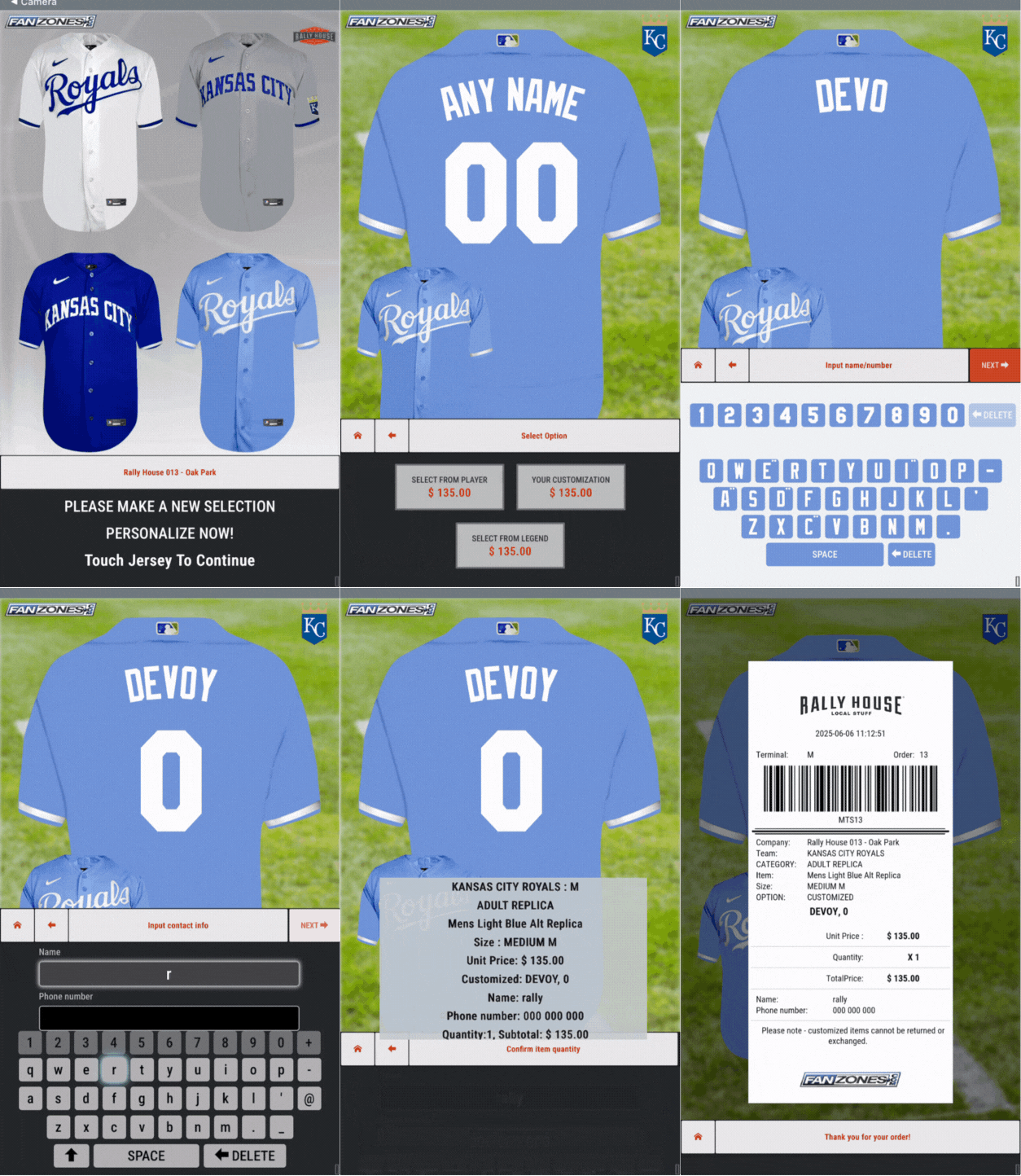
Fanzones Order Fulfillment Process
1. Take the Guest to the register and ask them to present the order receipt with the barcode displayed on their phone.
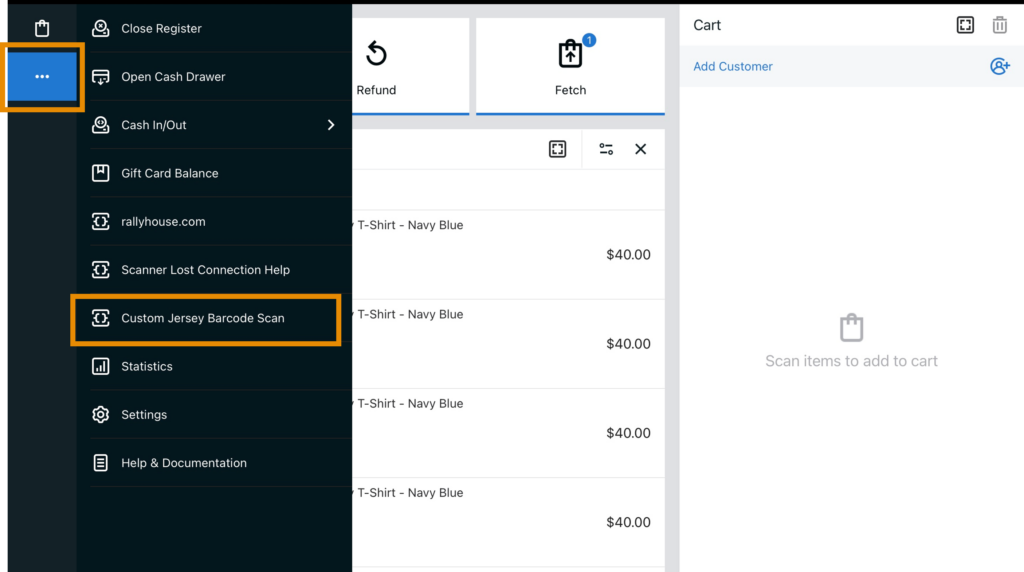
2. On the Sitoo POS, click the three (3) dots and select Custom Jersey Barcode Scan.
3. Select the store location where the jersey will be pressed from the drop-down menu.
4. Scan the order barcode from the Guest’s receipt.
- If the barcode will not scan, manually enter the letters and numbers shown beneath the barcode exactly as they appear on the Guest’s receipt. The entry is case sensitive.
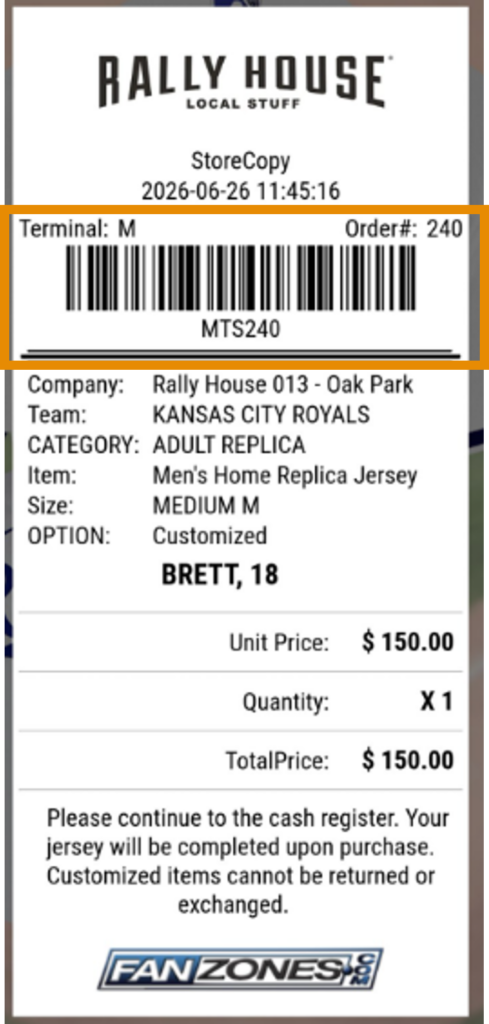
- Once this process has been completed, the order will now be available on the Fanzones laptop in the Custom Jersey section.
IMPORTANT: Continue to the Sitoo Process to complete the sale before producing the Custom Jersey.
Sitoo Purchase Process.
- Follow the standard checkout and purchase process in Sitoo.
- Add to the cart:
- Jersey
- Custom Fee (Sitoo Quick Add – SC Baseball Customization)
- Tap Pay to finalize the purchase.
- Inform Guest that they will receive a text message when their Jersey is ready for pickup.
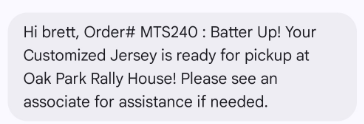
IMPORTANT: Do NOT scan any letters/numbers during the sales transaction. The Fanzones process accounts for all letters/numbers used for this Custom Order.
Fanzones Order Fulfillment Process
1. Access the Fanzones Process Order icon on the Fanzones Laptop.
2. Order will appear on the left titled “Paid Order”
3. Complete the MLB Jersey Press process.
4. Tap SMS to alert the guest once the Jersey is completed, this will send a text message to the guest that their order is ready for pickup.
- The order will then shift to the right side of the screen under Customer Order.

5. Once the guest has picked up their order, tap Done.

How to Press a Custom MLB Process – Automatic Press
You must be 18 years or older to press a jersey. It is a fire hazard to plug a jersey press into an extension cord or surge protector – plug directly into a wall outlet.
1. Make sure you have the correct blank jersey style and corresponding letters and numbers before beginning.
- These styles can be searched in Item Matrix – you can match the description of the item for the letter/number and the image in Item Matrix for the blank jersey.
2. Lay out all of the necessary letters & numbers for the specific jersey style you are making.
- e., For Bobby Witt Jr., make sure you have 1-W, 1-I, 2-T, 1-J, 1-R, 1-7, and special character “period”.
3. Lay the blank jersey out on the press platform evenly with the front of the jersey unbuttoned.
- Be sure the price and vendor tag is NOT underneath the shirt. Any tags should be pulled out from under the jersey so that they are hanging
- Tags that are left under a jersey will make a mark on the back of the jersey if it is between the press platform and the jersey when it is pressed.
4. Using a curved ruler and normal ruler measure out the position of the letters and numbers.
- The central letter in the name of the player 2 -inches from the bottom of the MLB logo stitched on the back of the neck
- Sides of the curved ruler should be 3 inches from both the left and the right side edge of the press platform.
5. Place letters evenly along the top of the curved ruler, following the curve.
- While this may be more difficult for players with longer names, make sure all letters are evenly spaced from each other and evenly distant from the edge of the jersey.
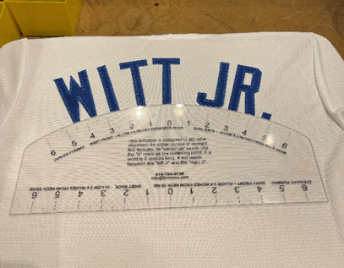
6. Place the player’s number(s) below the name on the back of the jersey.
- Top of the number should be 1 ½-inches from the bottom of the middle letter in the name.
- Each side of the number should be 7 ½-inches from the side edges of the platform.
- If there are two numbers, leave a ½-inch of space separating them.
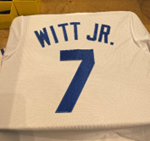
7. Confirm all numbers and letters are in the correct position one last time.
8. Place the kraft paper on the back of the jersey.
9. Place the teflon sheet over the kraft paper.
- The blue paper is the paper that touches the jersey.
10. Bring the press to hover over the blue paper covering the jersey, and press both buttons to engage press.
- DO NOT TOUCH THE UNDERSIDE OF THE PRESS WHILE IT IS ON.
11. Once press lift up automatically, your jersey should be finished.
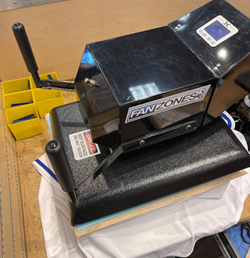
How to Press a Custom MLB Jersey – Manual Press
You must be 18 years or older to press a jersey. It is a fire hazard to plug a jersey press into an extension cord or surge protector – plug directly into a wall outlet.
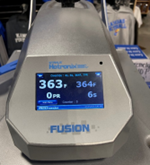
1. Turn on the jersey press to allow it to heat up. Ensure the settings are correct. Settings can be changed by tapping the value on the screen and typing in your desired value.
- Set the temperature to 350 degrees.
- Set the timer to 10 seconds.
2. Make sure you have the correct blank jersey style and corresponding letters and numbers before beginning.
- These styles can be searched in Item Matrix – you can match the description of the item for the letter/number and the image in Item Matrix for the blank jersey.
3. Lay out all of the necessary letters & numbers for the specific jersey style you are making.
- e., For Bobby Witt Jr., make sure you have 1-W, 1-I, 2-T, 1-J, 1-R, 1-7, and special character “period”.
4. Lay the blank jersey out on the press platform with the top of the jersey closest to you (example in image below). Lay the jersey out evenly with the front of the jersey unbuttoned.
- Be sure the price and vendor tag is NOT underneath the shirt.Any tags should be pulled out from under the jersey so that they are hanging
- Tags that are left under a jersey will make a mark on the back of the jersey if it is between the press platform and the jersey when it is pressed.
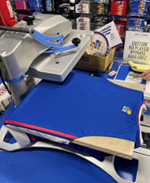
5. Use your curved ruler and normal ruler to measure out the position of the letters and numbers.
- A good rule of thumb is to have the top of the central letter in the name of the player 2 inches from the bottom of the MLB logo stitched on the back of the neck.
- Sides of the curved ruler should be 3 inches from each side edge of the press platform.
6. Place letters evenly along the top of the curved ruler, following the curve.
- While this may be more difficult for players with longer names, make sure all letters are evenly spaced from each other and evenly distant from the edge of the jersey.
7. Place the player’s number(s) below the name on the back of the jersey.
- Top of the number should be 1 ½-inches from the bottom of the middle letter in the name.
- Each side of the number should be 7 ½-inches from the side edges of the platform.
- If there are two numbers, leave a ½-inch of space separating them.
8. Be sure all numbers and letters are in the correct position.
9. Place the kraft paper on the back of the jersey.
10. Place the Teflon sheet over the top of the kraft paper.
- The blue paper is the paper that touches the jersey.
11. Once the press is heated to the desired temperature and the jersey is in place with the proper materials, you can manually lower the press onto the jersey using the handle.
- Press down with medium pressure.
12. The press MUST be lifted by the handle when the timer goes off.
MLB Jersey Press In-Store Markeing Setup
Team Section
Press Desk
In-Store
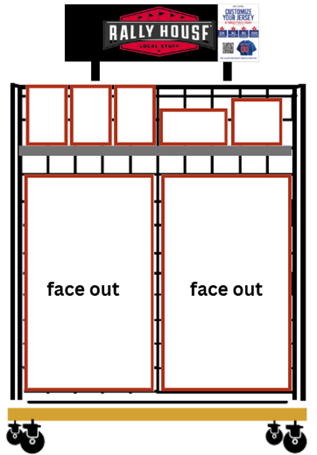
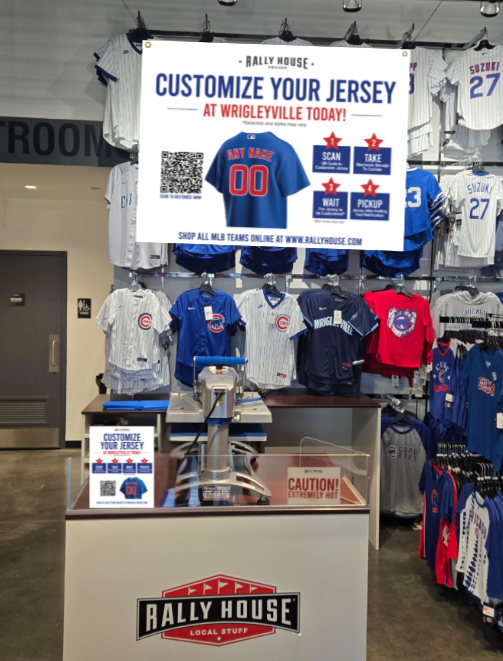
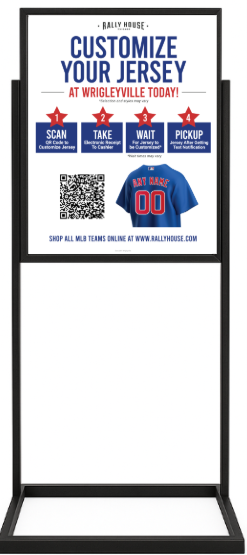
- Rack toppers are placed throughout your MLB team section.
- These signs are vertical and can be placed in grid sign holders or vertical orientated plexi and faceout sign holders.
- 11×8 sign is placed on the jersey press desk.
- Ensure that your Caution Hot signs are also on the press desk but creative was not updated.
- Wall Hanging Sign will replace the current one you have hanging above your press desk.
- Stanchion signs are placed into the indoor stanchion sign holder.
- Ideal placement is near the entrance of the door, especially for those with the press desk at the back of the store.
- This markets to guests entering the store!
Non-Sam Team Letter Number Storage
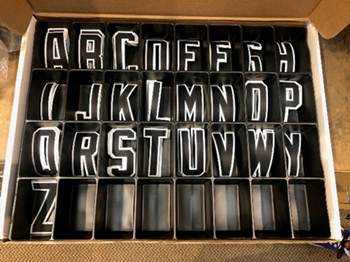
Steps for setting up storage boxes for non-sam team letters and numbers.
1. Start with the first team if you have multiple.
2. Place numbers 0-9 in order in the numbers box. Place one number for cubbie.
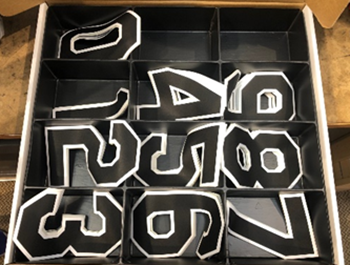
3. If you saved the shipping box that your letters arrived in, place the black insert into this box.
4. Place letters A-Z in alphabetical order in the black insert. Place on letter per cubbie.
5. Special characters such as period are placed after the letter Z.
6. Place Letter Number Storage at Jersey Press area.
Custom NHL Jerseys
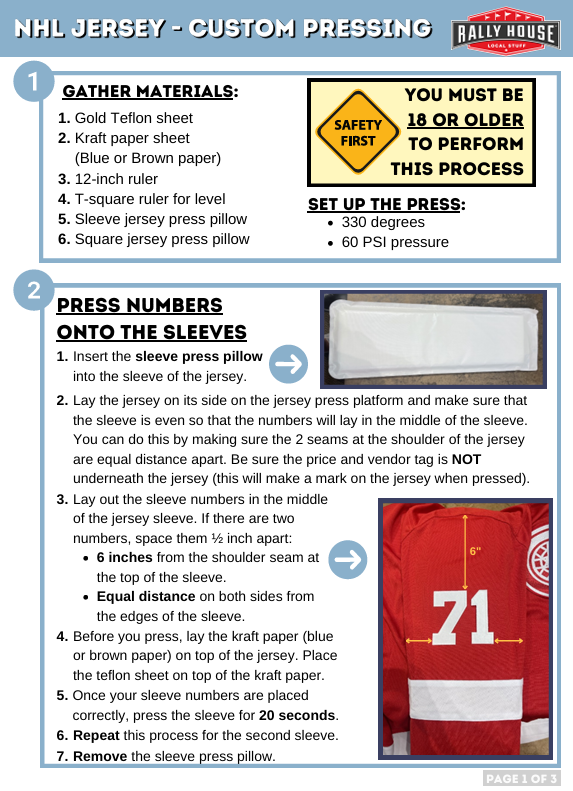
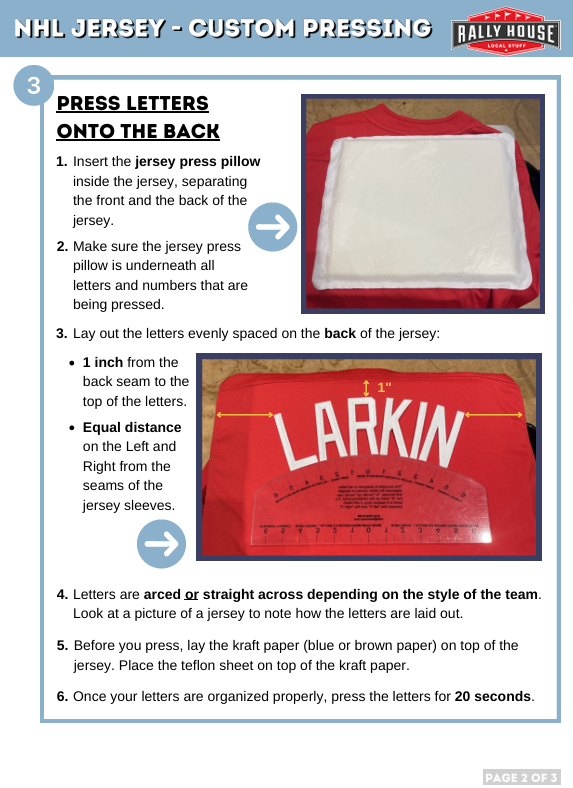
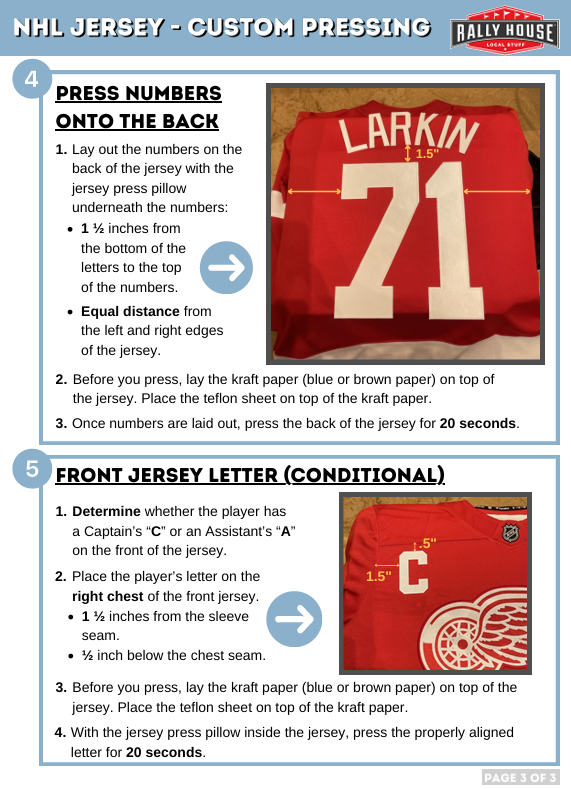
How to Press a Custom NHL Jersey
Checking out a Guest for Custom NHL Jersey
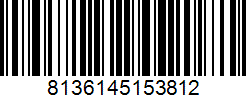
1. Custom NHL Jerseys that are created need the customization style number entered into the point of sale system to charge the $40 fee for customization.
- The style number is 9991321 or a UPC barcode is below
2. Each letter that was used to create the jersey must also be scanned into the point of sale system to decrement the letter from the store’s inventory.
- Each letter that was a part of the customization must be scanned into the point of sale (POS) system using the letter cheat sheet for the team.
Damaged Jersey During Custom Press Process
1. Go to the Admin Site Mobile Menu.
2. Select “Damages, Defective, Expired”.
3. Confirm the store listed is your location.
4. Select the reason as “Store Damage Discard” or “Store Damage Sell” depending on the severity of the damage.
5. Click “Submit”.
6. Scan the UPC/barcode for the blank jersey that was damaged.
7. Use the jersey letter cheat sheet to scan the barcodes for any letters/numbers that were damaged during the pressing process.
- If any letter is used more than once, scan the barcode for that letter again to add to the quantity for that style until the quantity shown is accurate.
- If any line on the damage list is highlighted in yellow, contact Operations through the Help Chat before proceeding.
8. Once the blank jersey and all the damaged letters and numbers have been entered, click “Process Damages”.
9. If the damaged item is not sellable, destroy and discard
10. If the damaged item is sellable
- Items that can be resold will be re-ticketed with the style numbers and prices on the attached chart. Items should be re-ticketed at approximately 25-75% off original current selling retail price. Please use a yellow highlighter to highlight the price. Store Manager will take into consideration the severity of the damage and most closely match the price in the chart and highlight the ticket.
Item # | Price | Item # | Price | Item # | Price | Item # | Price | |||
19890000 | $4.93 | 19890020 | $104.93 | 19890040 | $204.93 | 19890060 | $304.93 | |||
19890001 | $9.93 | 19890021 | $109.93 | 19890041 | $209.93 | 19890061 | $309.93 | |||
19890002 | $14.93 | 19890022 | $114.93 | 19890042 | $214.93 | 19890062 | $314.93 | |||
19890003 | $19.93 | 19890023 | $119.93 | 19890043 | $219.93 | 19890063 | $319.93 | |||
19890004 | $24.93 | 19890024 | $124.93 | 19890044 | $224.93 | 19890064 | $324.93 | |||
19890005 | $29.93 | 19890025 | $129.93 | 19890045 | $229.93 | 19890065 | $329.93 | |||
19890006 | $34.93 | 19890026 | $134.93 | 19890046 | $234.93 | 19890066 | $334.93 | |||
19890007 | $39.93 | 19890027 | $139.93 | 19890047 | $239.93 | 19890067 | $339.93 | |||
19890008 | $44.93 | 19890028 | $144.93 | 19890048 | $244.93 | 19890068 | $344.93 | |||
19890009 | $49.93 | 19890029 | $149.93 | 19890049 | $249.93 | 19890069 | $349.93 | |||
19890010 | $54.93 | 19890030 | $154.93 | 19890050 | $254.93 | 19890070 | $354.93 | |||
19890011 | $59.93 | 19890031 | $159.93 | 19890051 | $259.93 | 19890071 | $359.93 | |||
19890012 | $64.93 | 19890032 | $164.93 | 19890052 | $264.93 | 19890072 | $364.93 | |||
19890013 | $69.93 | 19890033 | $169.93 | 19890053 | $269.93 | 19890073 | $369.93 | |||
19890014 | $74.93 | 19890034 | $174.93 | 19890054 | $274.93 | 19890074 | $374.93 | |||
19890015 | $79.93 | 19890035 | $179.93 | 19890055 | $279.93 | 19890075 | $379.93 | |||
19890016 | $84.93 | 19890036 | $184.93 | 19890056 | $284.93 | 19890076 | $384.93 | |||
19890017 | $89.93 | 19890037 | $189.93 | 19890057 | $289.93 | 19890077 | $389.93 | |||
19890018 | $94.93 | 19890038 | $194.93 | 19890058 | $294.93 | 19890078 | $394.93 |

CUSTOMER ORDERS
Customer Order Process
This process is only for Jersey Press stores.
1. Open the Stores-Jersey Press Orders link in the Reminders.
- This will open a report of all Pending jerseys to make.
- What is Jersey For?
- Transfer = TOE transfer to another store.
- Customer Order = Online order that will be picked in SPOC.
- Transfer To = Store new jerseys will be transferred to.
- Qty To Make = How many jerseys need to be pressed for the transfer.
- Customization Needed = The player’s name and number to be pressed on the jersey.
- Retag Completed Jersey as This Item = What the pressed jersey must be reticketed as once completed.
- What is Jersey For?
2. Click on the “Order Number” in the report.
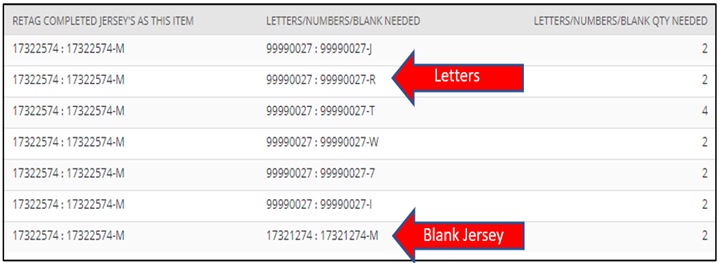
- This will show all the letters, numbers, and Blank jerseys the store will need to complete ALL the jerseys.
3. Gather all the materials needed to create the jersey.
4. Press the jersey.
5. Once completed, go back to the report, and click “Edit”.

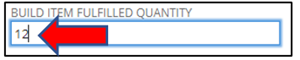
6. Enter the quantity of jerseys made in the “Build Item Fulfilled Quantity” box.
7. Click “Save”.
- This will remove the Jersey Press Order from the report.
8. Wait until the page has saved, do not navigate away from this page.
9. Click “Edit” AFTER saving it the first time.
- Put the Jersey in an Order Bin.
- Enter the Bin number into the “Pick Bin” box.
- Click “Save”.
10. The jersey will now show under Completed Customer Orders as ready to pack and ship out.
JERSEY PRESS TRANSFERS
This process is for stores that have a Jersey Press. There will be times where Rally House will create their own player jerseys to transfer to other stores. First the store will need to press the jerseys, then they will need to use TOE to transfer them to the correct location. This Best Practice outlines that process.
The Process
1. Open the Stores-Jersey Press Orders link in the Reminders.
- This will open a report of all Pending jerseys to make for the transfer.
- What is the Jersey For?
- Transfer = TOE transfer to another store.
- Customer Order = Online order that will be picked in SPOC.
- Transfer To = Store new jerseys will be transferred to.
- Qty To Make = How many jerseys need to be pressed for the transfer.
- Customization Needed = The player name and number to be pressed on the jersey.
- Retag Completed Jersey As This Item = What the pressed jersey must be reticketed as once completed.
2. Click on the “Order Number” in the report.
- This will show all the letters, numbers, and Blank jerseys the store will need to complete ALL the jerseys.
3. Gather all the needed materials to create the jersey.
4. Press the jersey.
5. Once completed, go back to the report, and click “Edit”.
6. Enter the quantity of jerseys made in the “Build Item Fulfilled Quantity” box.
7. Click “Save”.
- This will remove the Jersey Press Order from the report.
8. If the Jersey for a Customer Order, then click “Edit” After saving it for the first time.
- Put the Jersey in an Order Bin.
- Enter the Bin number into the “Pick Bin” box.
- Click “Save”.
10. The jersey will now show under Completed Customer Orders as ready to pack and ship out.