In order to Save a Pre-Paid Label you will need a Folder saved to your Desktop
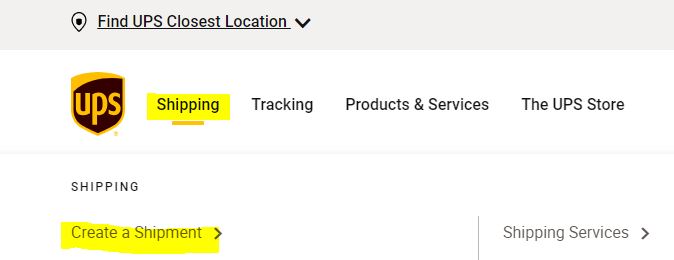
- Login to www.ups.com and navigate to the shipping tab
- Click on Create a Shipment
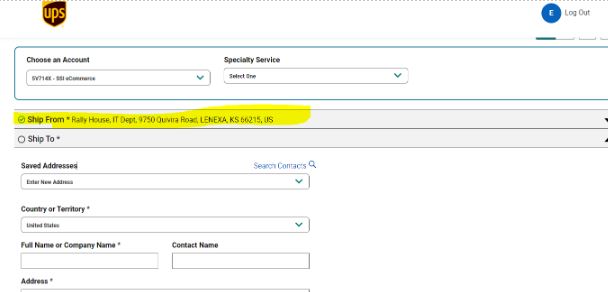
- Click on the dropdown of Ship From
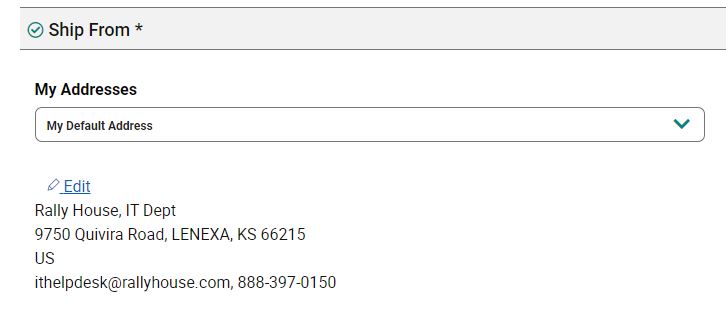
- Click edit and delete the auto populated Rally House IT address, email address, and phone number
- Type in Customers address
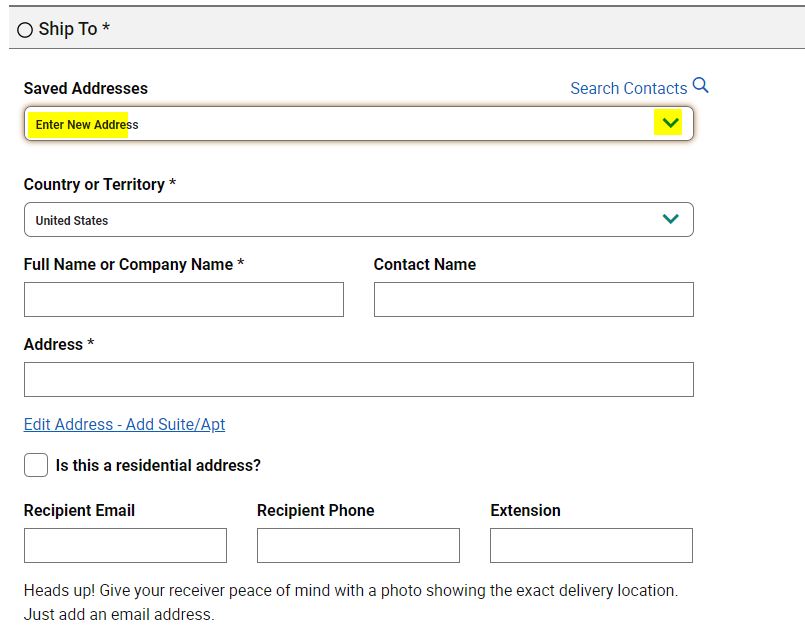
- Click on the Ship To Address and select Store location from the dropdown
- Items being returned must go back to Store that fulfilled
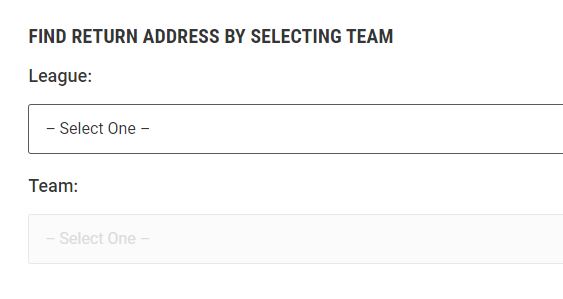
- If you’re unable to locate Store that fulfilled go to www.rallyhouse.com/returns
- Select League and Team to Identify which Rally House Location to Return items to
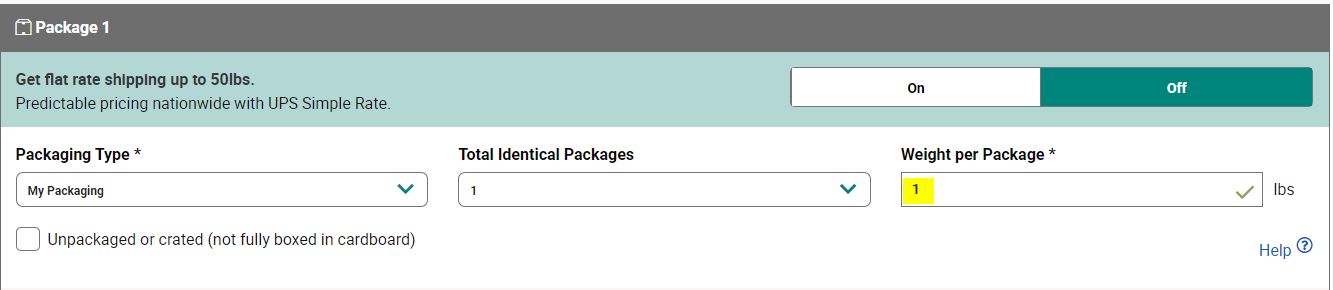
- Under Package Information type in the weight of the package as 1lb
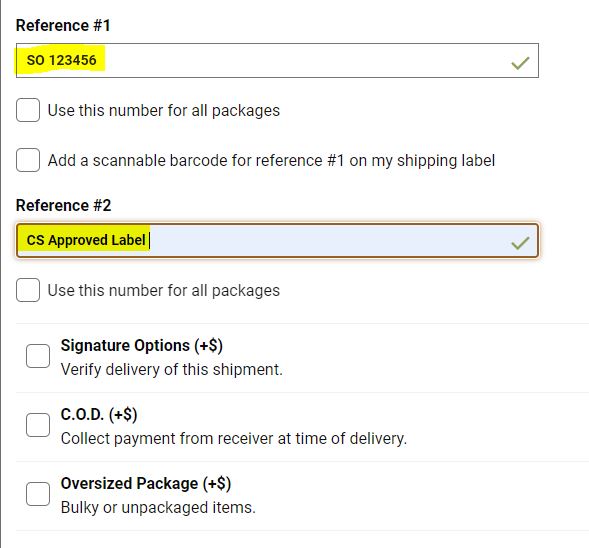
- Scroll to Reference #1
- Type in Sales Order Number
- Scroll to Reference #2
- Type in CS Approved Label
- Scroll to bottom of page and click on Pay and Get Label(s)
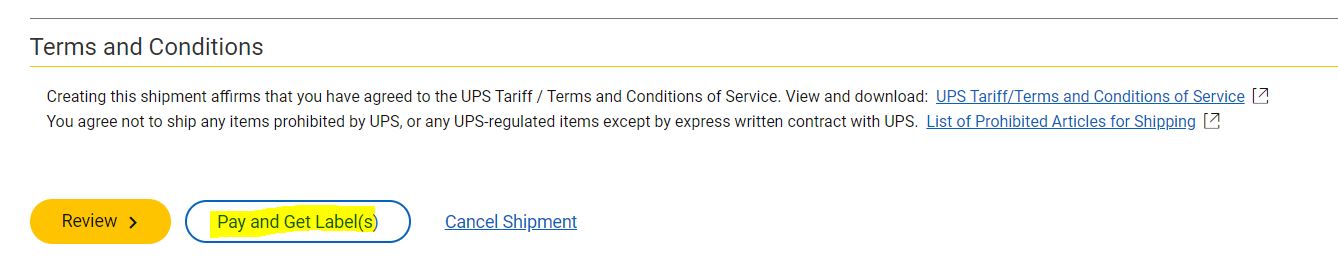
- Select Save as PDF
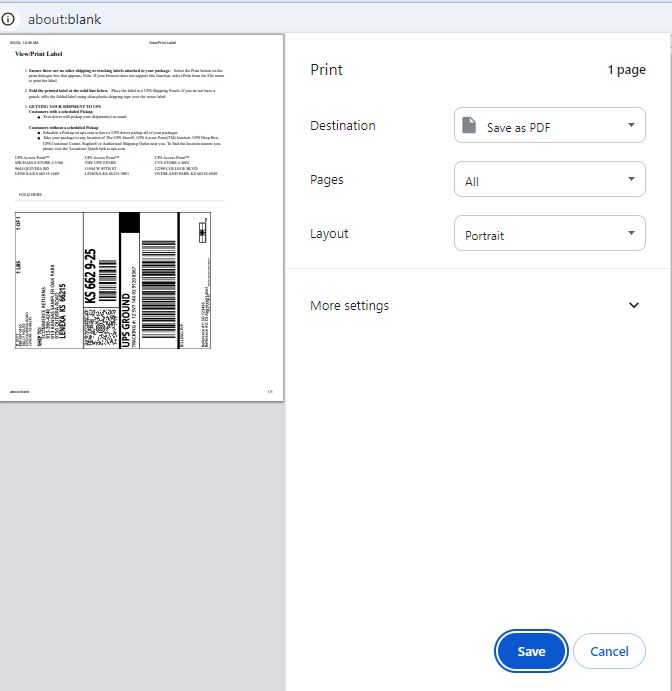
- Click Save
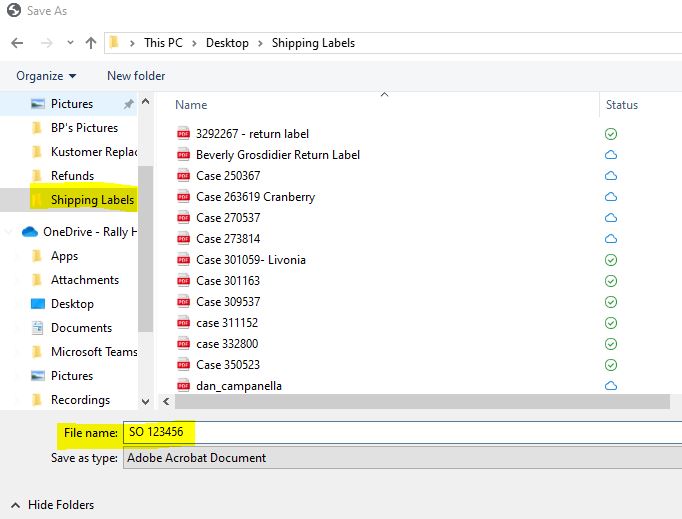
- Save it under your Shipping Label Folder as the Customers Sales Order Number
- Email the Pre-Paid Label to the Customer
- Open Customers Sales Order
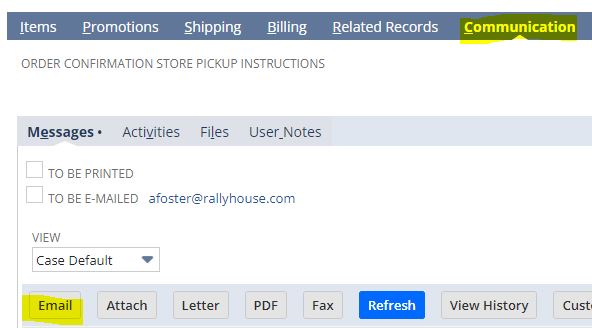
- Scroll to Dark Blue Bar and click on Communication
- Click on Email
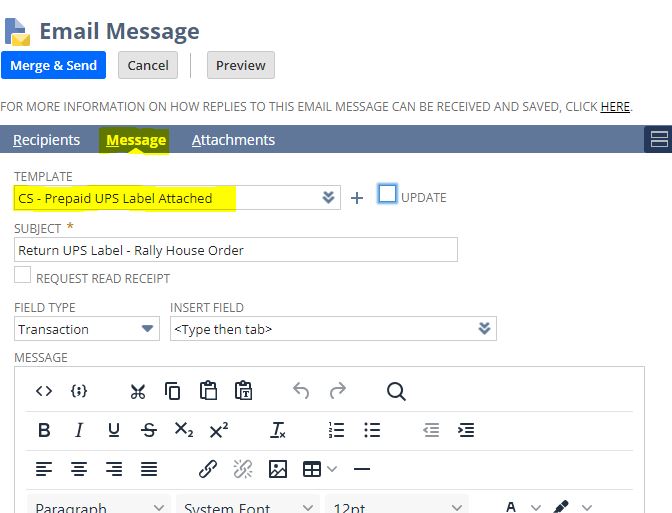
- Click on Message
- Under Template click on CS- Prepaid UPS Label Attached
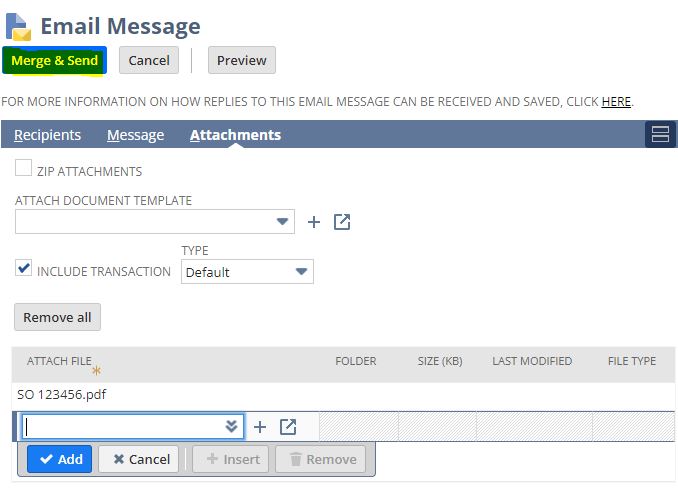
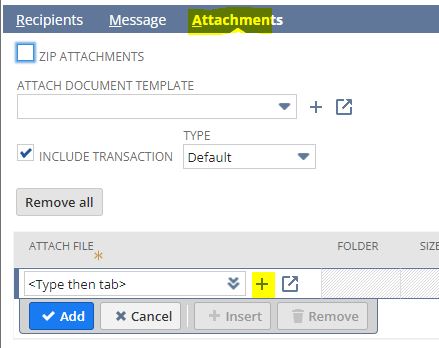
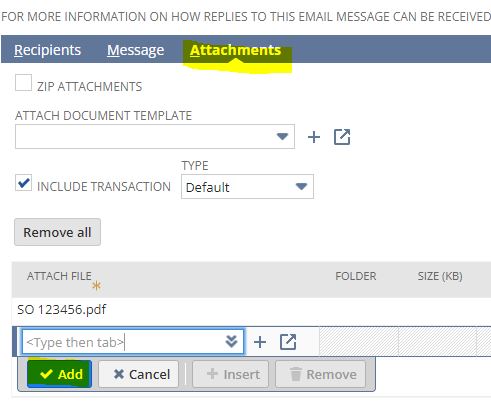
- Click on Attachments
- Click on the plus icon (new)
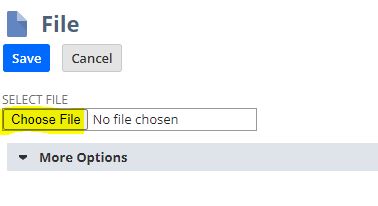
- Click Choose File
- Search Sales Order Number
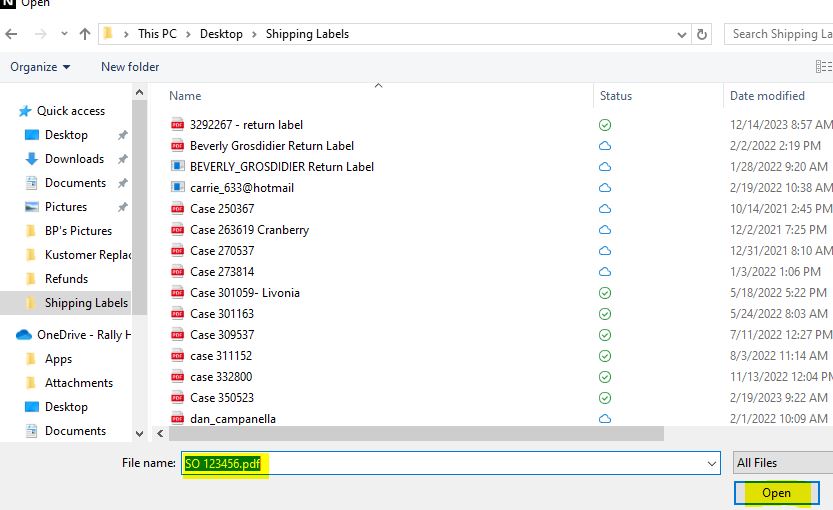
- Click Open
- Click Save
- Under Attach Files Click Add
- Click Merge and Send