Skip to content
- Search name of Silhouette in NetSuite

- Click “Edit” in top left corner of Silhouette record
- In a new tab, go to File Cabinet in NetSuite
- Search “Size” on left side and hit enter
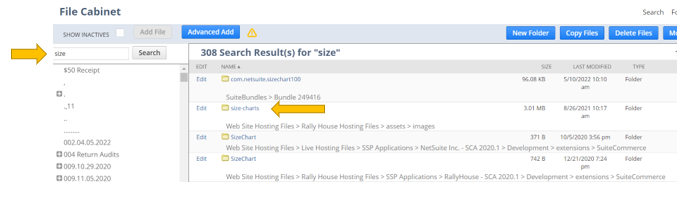
- Click correct Size Chart folder (pictured above)
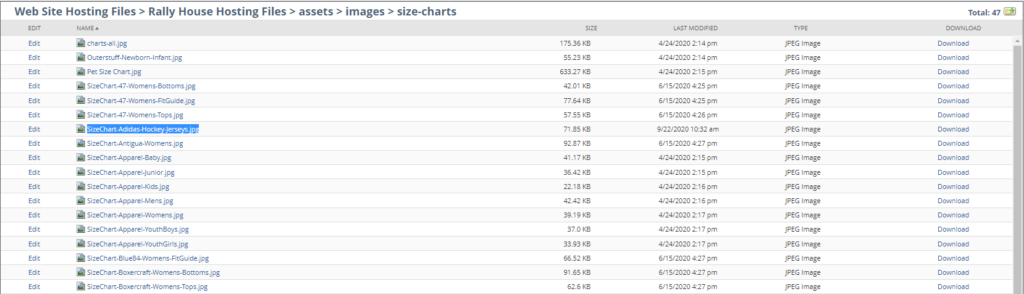
- Find the Size Chart that corresponds to the Silhouette you’re updating
- If the Size Chart you need is not in File Cabinet, reach out to eComm team
- Copy the name of the image you need
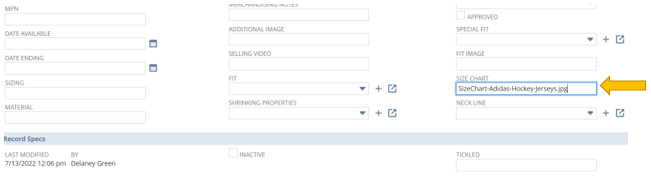
- Go back to the Silhouette and find the “Size Chart” field
- Paste image title – MUST include “.jpg”
- Click “Save” in top left corner of Silhouette page
- Every product that uses the silhouette will now include the Size Chart you added to it