SCHEDULING
Standard Operating Procedure & FAQ
Flags and Click Home buttons are clickable to make it easy to navigate the page





INTRODUCTION
THE PLAY:
Scheduling plays an important role in supporting store operations, payroll accuracy, staffing visibility, and Team Member experience across Rally House locations. Legion serves as Rally House’s workforce management and scheduling platform used for schedules, timekeeping, availability management, workforce communication, and additional Team Member resources.
Clear scheduling processes help Team Members stay informed on schedule expectations, manage availability, request time off, and navigate workforce tools more confidently. This playbook is designed to provide straightforward guidance, support resources, FAQs, and instructional tools that simplify scheduling-related processes and create a more consistent experience across all stores.
Whether reviewing schedules, submitting time off requests, accessing Instant Pay resources, or navigating Legion tools, this resource is intended to support Team Members in day-to-day workforce management activities.
IMPACT:
Scheduling and workforce management play a major role in supporting store operations, payroll accuracy, staffing visibility, and Team Member experience. When Team Members understand how to properly utilize Legion and related workforce tools, stores are better positioned to maintain schedule consistency, improve communication, reduce confusion, and support operational execution.
Clear scheduling processes help:
- Improve visibility into schedules, worked hours, and shift expectations
- Reduce scheduling conflicts and missed communication
- Support payroll accuracy and timely approvals
- Improve staffing awareness and schedule flexibility
- Create more consistency across stores and scheduling practices
- Help Team Members better manage availability and time off planning
- Provide easier access to workforce resources and scheduling support tools
When done well:
- Team Members can confidently access and manage scheduling resources
- Time off requests are submitted and reviewed more efficiently
- Schedule updates and workforce communication are easier to navigate
- Payroll-related questions and discrepancies are reduced
- Store Leadership and Team Members maintain better scheduling visibility
- Teams spend less time troubleshooting scheduling issues and more time supporting store operations and the Guest experience
ON FIELD TERMINOLOGY
- Legion: Rally House’s workforce management and scheduling platform used for scheduling, timekeeping, availability management, workforce communication, and Team Member scheduling resources.
- Open Shift: A shift that becomes available and requires coverage or reassignment.
- Instant Pay: A Legion feature that allows eligible Team Members to access a portion of earned wages before payday.
- Payroll Deadline: The processing cutoff that determines when approved payroll-related changes will be included in payroll.
- Workforce Communication: Scheduling-related updates, alerts, and notifications communicated through Legion.
- Minor Compliance Issue: A scheduling conflict or labor rule issue that prevents a schedule from being published.
LEGION
THE PLAY:
Legion serves as Rally House’s workforce management and scheduling platform used for schedules, timekeeping, availability management, workforce communication, and additional Team Member resources. Team Members utilize Legion to review schedules, manage availability, request time off, review worked hours, and stay informed on scheduling updates and notifications.
This section is designed to help Team Members successfully access and navigate Legion while providing support resources, login guidance, onboarding information, and answers to commonly asked questions. Whether utilizing Legion through desktop or mobile, these resources are intended to simplify day-to-day scheduling and workforce management activities.
IMPACT:
Consistent use of Legion improves scheduling visibility, workforce communication, and access to important Team Member resources. Understanding how to properly navigate Legion helps reduce confusion surrounding schedules, notifications, timekeeping, and account access while creating a more consistent scheduling experience across stores.
When done well:
- Team Members can confidently access schedules and workforce information
- Scheduling updates and notifications are easier to manage
- Login and onboarding issues are resolved more efficiently
- Workforce communication becomes more consistent
- Team Members spend less time troubleshooting access or scheduling questions
GAME PLAN
Accessing Legion
Team Members can access Legion through both desktop and mobile options, allowing schedules, workforce notifications, timekeeping information, and additional resources to be viewed from almost anywhere. Desktop access is available by visiting rallyhouse.legion.work, while mobile access can be completed through the Legion app or onboarding instructions provided through the QR code and onboarding resources below. If issues occur during login or onboarding, Team Members can reference the support information and FAQs included within this section for additional guidance.
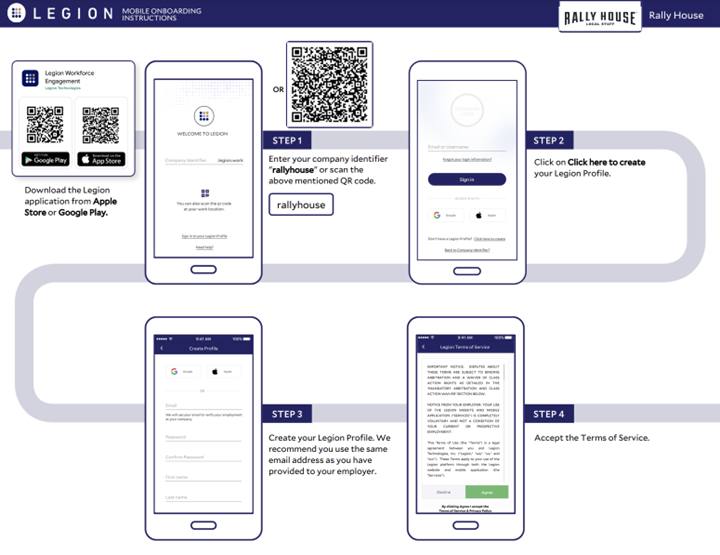
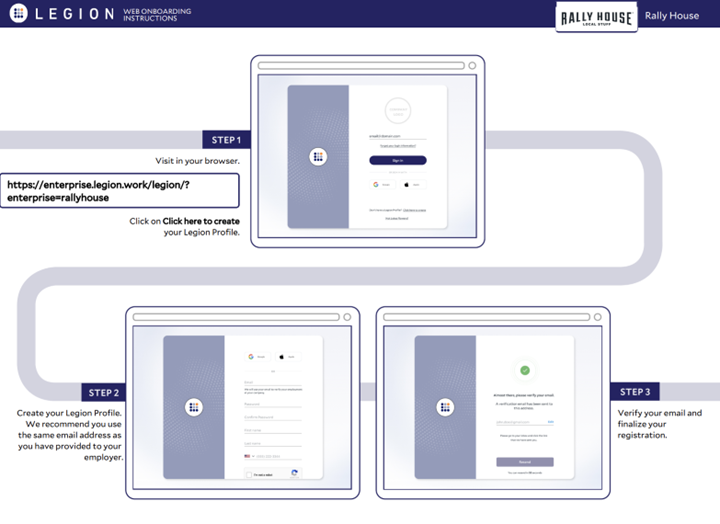
Any issues with the QR above simply log into Legion> select Team>select Onboarding Instructions

Legion FAQs
Login & Account Access
Question | Answer |
It says that my onboarding is pending manager approval. Who approves this? | We need to check which e-mail you used to onboard with. If it is the wrong e-mail, it will ask your manager to approve your account as it doesn’t exist with that e-mail. Open a support case to have this verified. |
Which e-mail do I use? | If you have a company provided e-mail, use this e-mail. If you do not have a company provided e-mail, use the e-mail listed on your employee record in NetSuite. |
Who resets passwords if you forget yours? | Employees are in charge of resetting their password if it is forgotten. Utilize the “Forgot your login information?” option on the login page to reset your password. |
I want to access via a desktop computer, what is the URL? | rallyhouse.legion.work |
Employee Updates & Store Changes
Question | Answer |
I’ve been promoted/transferred/have a terminated employee. When will Legion update? | Files are being shared with Legion daily for employee changes. These changes may take 1–3 business days to reflect. |
Team Sales Leads are listed as “sales” and not as “management”. Is the “management” designation for full-time? | “Management” is only full-time. |
Will both store managers be allowed to create schedules for the store? | Yes |
How do I change my store hours? | Operating Store Hours are changed via Support Case to Operations. Single day adjustments for items such as a game day are done by the store in NetSuite using the Store Hours Change Request Form. |
Scheduling & Availability
Question | Answer |
Will a store manager be notified when an employee changes availability? | A store manager will be notified when an employee changes availability and will need to approve the change. |
Will team members be able to see all schedules once published or just one week at a time? | Team members will be able to see all published schedules. |
I have a minor compliance issue – why can’t I publish my schedule? | Minor compliance issues are strictly enforced. You will not be able to publish a schedule that has a minor compliance issue. |
Timekeeping & Payroll
Question | Answer |
Will we need to approve timesheets weekly or by pay period? | Weekly |
What pin number will employees use to clock in and out? | The employee will use the pin number shown on their HR profile within Legion. This can only be accessed through Legion on the desktop version. |
How early is considered an “early” clock in? | If an employee clocks in 6+ minutes early, this is considered early and will require manager override. |
How late is considered a “late” clock out? | If an employee clocks out 16+ minutes late, this is considered late and will require manager override. |

TIME OFF REQUESTS
THE PLAY:
Time off requests help Team Members communicate planned absences, availability needs, and scheduling conflicts through Legion. Properly submitting and managing requests supports scheduling visibility, payroll accuracy, and store coverage planning while helping Store Leadership manage schedules more efficiently.
This section provides guidance on submitting time off requests, understanding how requests impact posted schedules, managing notifications, and navigating commonly asked questions related to time off processes within Legion.
IMPACT:
Clear and timely time off communication helps stores maintain schedule consistency while supporting Team Member scheduling needs. Utilizing Legion for time off requests improves visibility into approvals, reduces scheduling confusion, and helps stores proactively manage staffing coverage.
When done well:
- Team Members can submit and track requests more confidently
- Scheduling conflicts and coverage gaps are reduced
- Approved requests are communicated more consistently
- Store Leadership can better manage posted schedules and open shifts
- Payroll timing and approval expectations become easier to understand
GAME PLAN
Time Off Requests
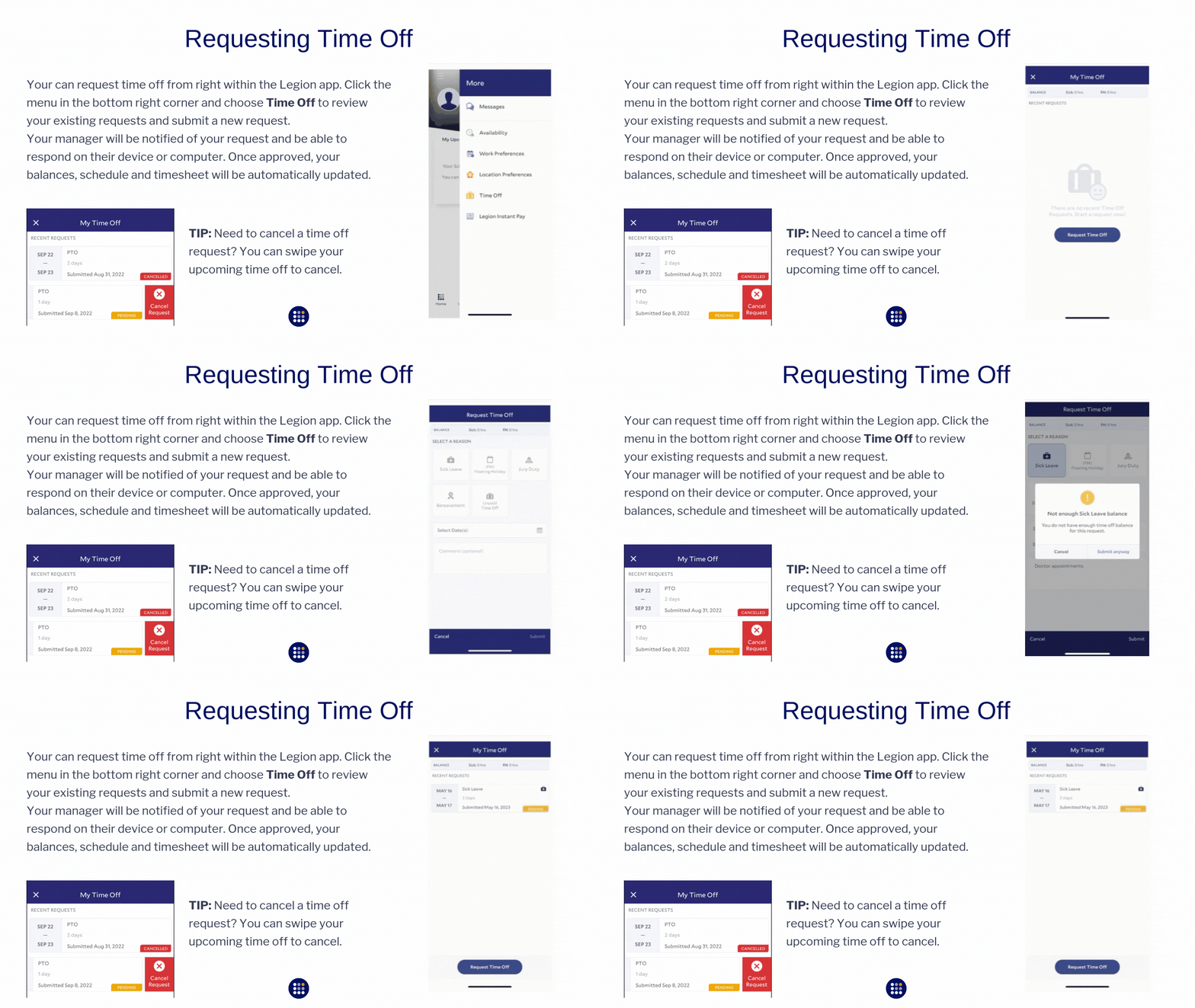
Attention Field Leaders: you must drill down to the store level when managing requests. Scroll down ⬇️if you need to adjust your notification settings. |
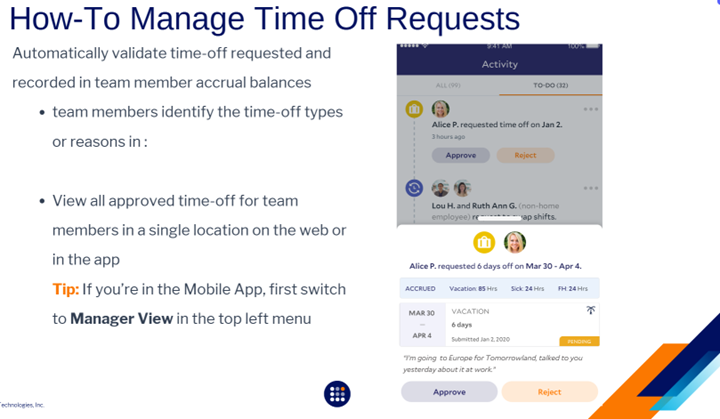
Follow these steps if a manager needs to manually submit time-off for a Team Member.
In some cases a manager may need to manually submit time off on behalf of a team member. This can be done with the following steps on the Legion desktop console:
1. Click on the Team tab on the left-side toolbar.
2. Click on the employee who you are entering time off for.
3. Click the Time Off tab at the top of their profile.
4. Click the Creat Time Off button.
5. Select the reason for the time off requests.
6. Select the start and end dates for the time off.
7. Click Apply.
NOTE: When time off is manually created by a manager, it is automatically approved. Time off requests, once entered, cannot be deleted. If a request needs to be canceled or was entered in error, you must reject the request.
📺This video below outlines what happens when a request off occurs AFTER a schedule is finalized and posted. Approving a request off on a posted schedule will create an Open Shift that needs to be managed.
- Manager Demo video
🔔Not getting alerts or notifications? Check your settings. |
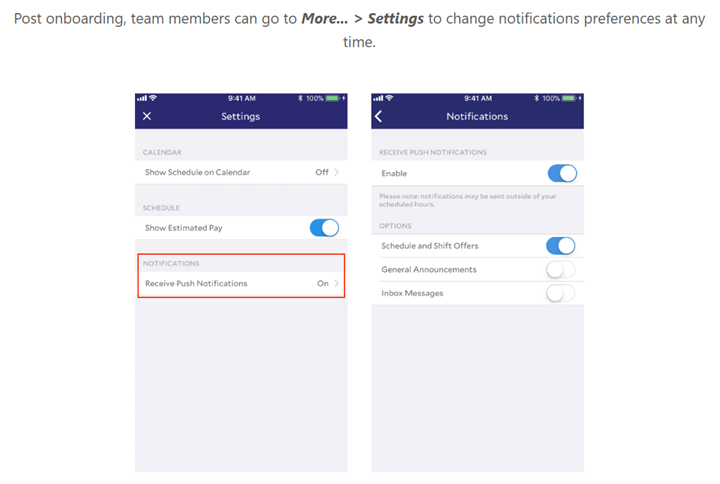
Time Off FAQ
| Question | Answer |
|---|---|
| Why can’t I request time off for a date in the past? | Time off in Legion is designed to interact with schedule adjustments. Time off requests should be entered ahead of time when possible. If time off needs to be entered for a prior date, the employee’s manager will need to enter the time off request for the employee. This can be done directly on the employee’s timesheet under Time Off or through the Time Off tab on the employee’s profile. |
| Legion is throwing an error when I attempt to approve my employee’s time off. What is the solution for the error, “Above weekly limit plus worked hours”? | The employee’s time off request will cause their worked hours to exceed 40. The manager will need to reject the request and enter a new time off request for the employee. |
| Why was my time off request not on my paycheck? | Please review the requests in Legion and ensure they were approved before the payroll deadline. If they were approved timely, email payroll@rallyhouse.com. If they were approved after the payroll deadline, they will be on the next payroll. |
| My time off balances in Legion and Workday are different. | Time off balances in Legion are not updated automatically when requests are submitted or cancelled. Balances and accruals are stored in Workday then transferred to Legion on the Monday of payroll week. |
INSTANT PAY
THE PLAY:
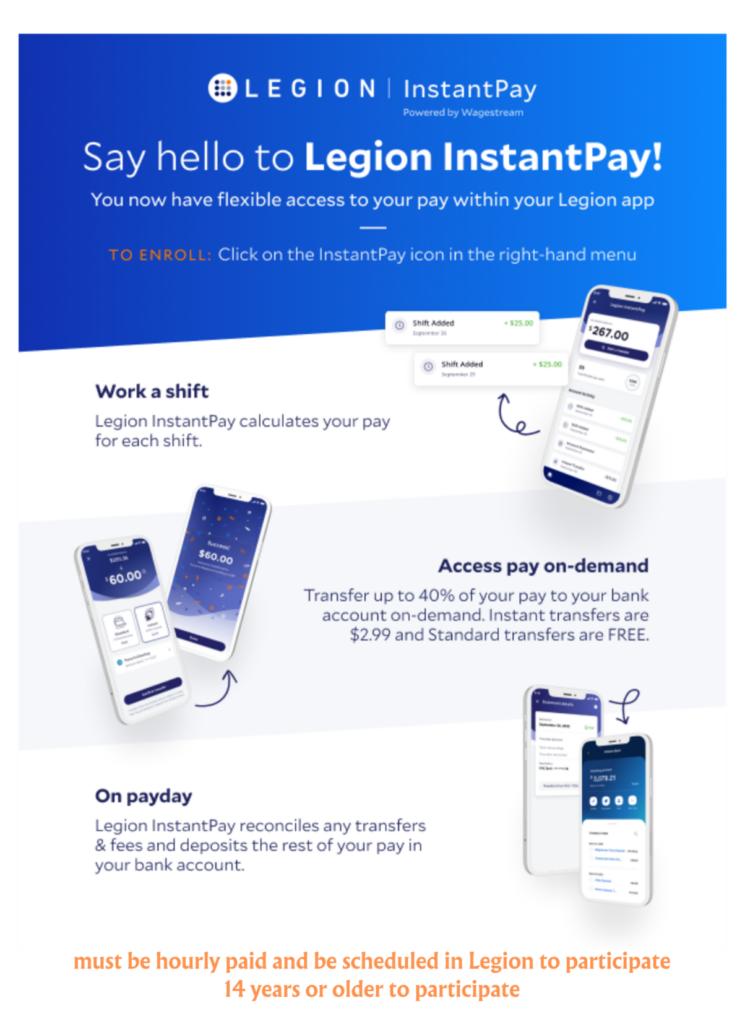
Instant Pay powered by Wagestream allows eligible Team Members to access a portion of earned wages directly through the Legion app before payday. Once worked shifts have been submitted, Team Members can review their available earned balance and transfer funds directly to a bank account or debit card through Legion.
This section provides an overview of how Instant Pay works, transfer options, payroll impacts, fees, and additional resources available to help Team Members better understand the feature and how it integrates into the payroll process.
IMPACT:
Instant Pay provides Team Members with additional flexibility and visibility into earned wages throughout the pay period. Access to earned wages directly through Legion helps simplify short-term financial planning while maintaining a secure and streamlined payroll experience.
When done well:
- Team Members better understand available earned wage access options
- Payroll expectations and transfer timing become clearer
- Team Members can make more informed financial decisions throughout the pay period
- Access to payroll-related resources and information becomes easier to navigate
- Workforce tools within Legion become more fully utilized
GAME PLAN
Instant Pay Overview
What is Legion Instant Pay?
Legion Instant Pay powered by (Wagestream) is an innovative earned wage access feature which allows you to access a percentage of your earned pay at any point in the pay period — all within the Legion app.
How Does Legion Instant Pay work?
At the touch of a button, Legion Instant Pay allows you to access a portion of your earned income, at any time.
Once your shifts have been submitted, log into the Legion app to view your available balance, then select the amount you wish to transfer directly into your bank account or debit card.
- Financial flexibility
- Track what you earn in the Legion Instant Pay section of your Legion app and pay yourself when you want.
- Instant access
- Transfer a percentage of your earned pay directly to your bank account in seconds.
- Not a loan, no interest
- You will only have access to wages you have already earned. All next-day transfers are free of charge. Each instant transfer will incur a convenience fee of $2.99, no matter the amount. That is the only cost.
At the end of the pay period, any of your net salary not already accessed will be paid as normal, minus any transfer fees. You will also receive a statement with each payday that details any activity you have made during that period.
See additional resources on the main page for a full list of Resources and Guides.
TEAM SETUP
THE PLAY:
Team Setup in Legion ensures schedules are built using accurate Team Member information, availability, work preferences, and coverage needs. Proper setup helps create stronger schedules, improves coverage visibility, and supports better scheduling decisions for your store team.
IMPACT:
Keeping Team Member profiles and preferences updated allows Legion to build more effective schedules based on real availability and business needs.
Consistent Team Setup also helps:
- Improve schedule accuracy.
- Reduce scheduling conflicts.
- Support school and minor compliance.
- Identify coverage gaps earlier.
- Ensure new Team Members are ready for scheduling quickly.
GAME PLAN
New Team Member Setup
- Team Members flow automatically from Workday into Legion.
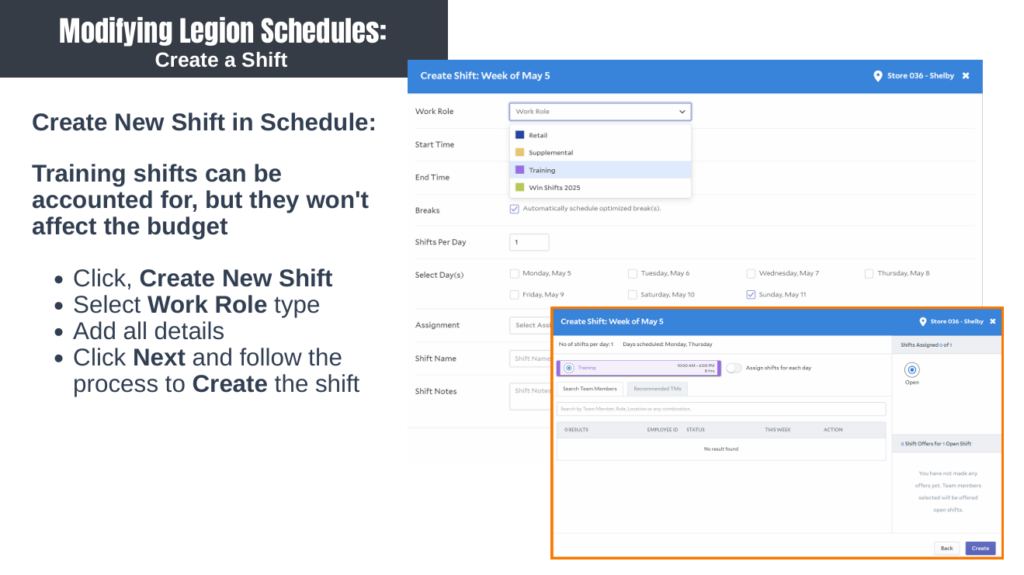
- Managers can create placeholder training shifts until onboarding is complete.
- Managers should review onboarding and roster information regularly.
- New Team Members will be provided Legion Onboarding Instructions through PayCom Instructions with all other Onboarding information provided by Payroll.
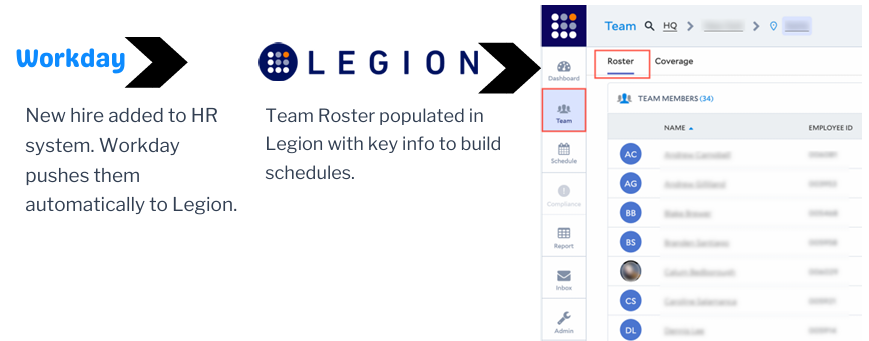
Team Member Setup: Adding a New Team Member
Team Members are automatically imported from your HR system. You can create a New Shift as a placeholder for newly hired team members.
Click Schedule>Schedule>Edit>Create New Shift and click next.
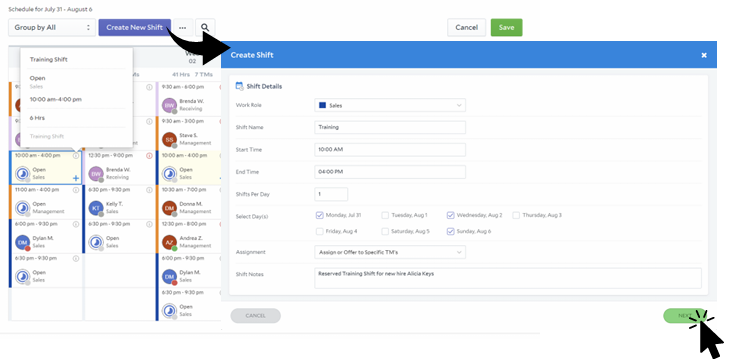
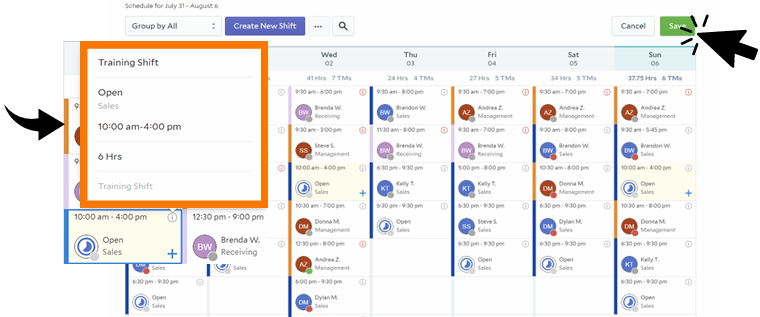
You will now see the training shifts and can click on the information icon to view details.
Click Save to finalize the edits.
Team Roster
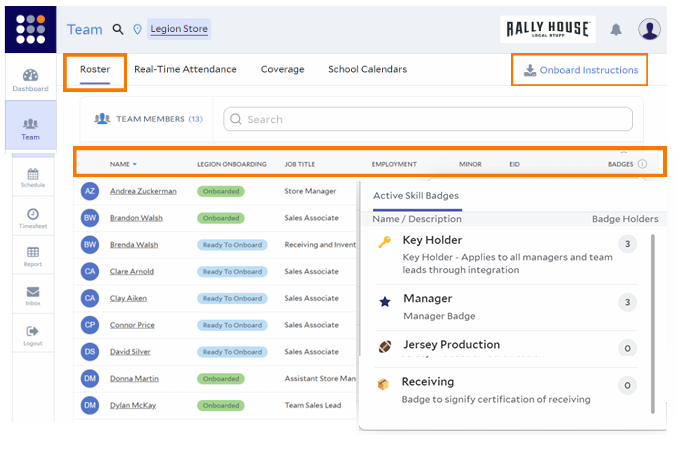
From the Team tab>Roster you are able to see all Team Members. Key information is Onboarding status, correct Job Titles, Minor Status, and Badges.
Badges are Custom tags that can be used for Key Holders, Cashiers.
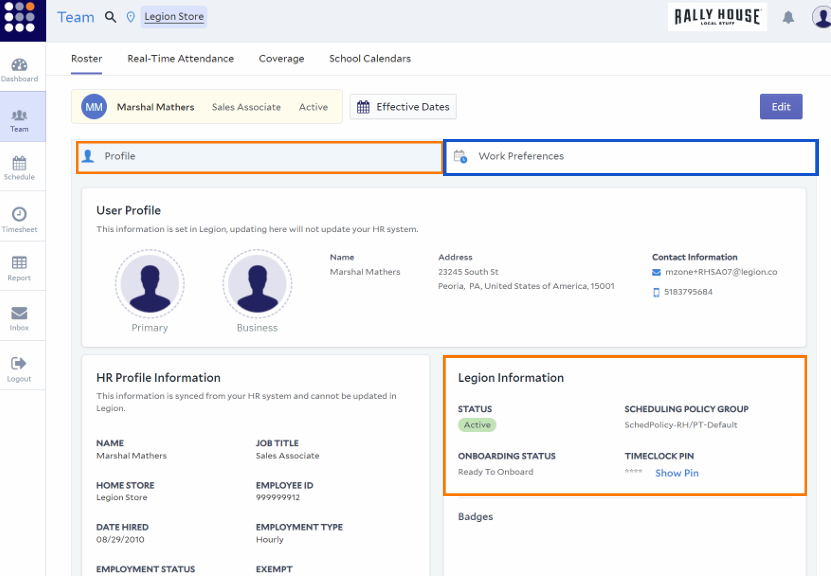
Profile and Work Preferences
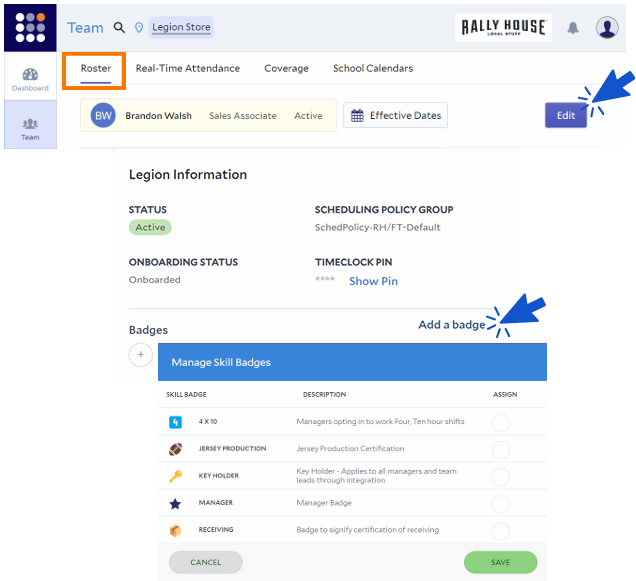
From the Team tab>Roster click a Team Members name to access Profile and Work Preferences.
If adjustments are needed click Edit.
Team Member Setup: Set Desired Schedule
1. Select Team from the left menu.
2. Click on the Employee Name.
3. Click the Work Preferences tab.
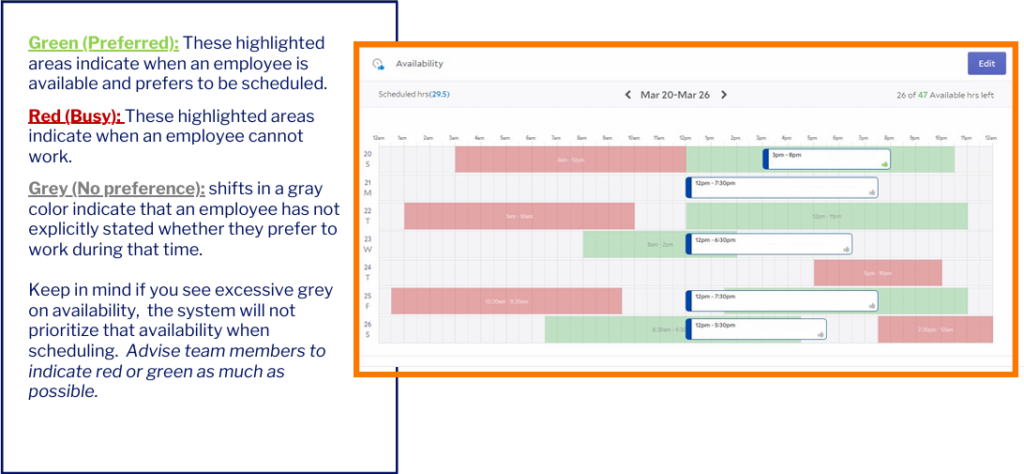
4. Scroll down to Availability section.
5. Choose the week dates you would like to work in to start (you can set preferences as recurring going forward).
6. Click on the Edit button.
7. Click the Preferred tab.
8. Use the slider to adjust the hours on each day they would like to work. Green blocks will appear during those times.
9. Click Save.
Team Member Setup: Set Unavailability
1. Select Team from the left menu.
2. Click on the Emplyee Name.
3. Click the Work Preferences tab.
4. Scroll down to Availability section.
5. Choose the week dates you would like to work in to start (you can set preferences as recurring going forward).
6. Click on the Edit button.
7. Click the Busy tab.
8. Use the slider to adjust the hours on each day they would like to work. Red blocks will appear during those times.
9. Click Save.
Coverage
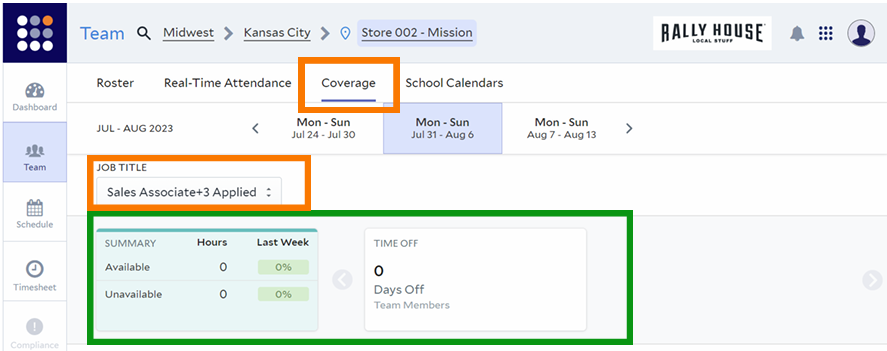
- Week: by default Legion displays the current week. Select a different week, as needed.
- Job Title: View coverage by different job titles.
- Coverage Smartcard: Summarizes the total available hours and unavailable hours; it also provides a percentage comparison between this week and last week.
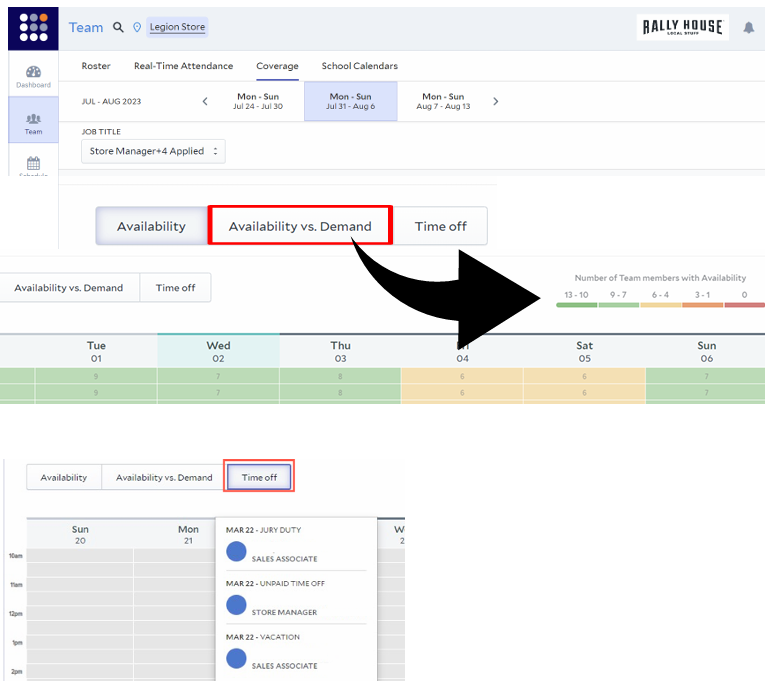
- Availability Tab: This chart shows your coverage for a given week based on Team Member Availability.
- Availability vs Demand Tab: This chart breaks down each day by the percantage of demand that is covered by Team Member availability.
- Timeoff Tab: This chart provides a visual representation of days/times where location coverage may be impacted by approved time off.
- Recruiting Tool: You can click on Availability to identify if you have lighter coverage. You can also click on Availability vs Demand to see if you are able to sustain Business needs based off staff availability.
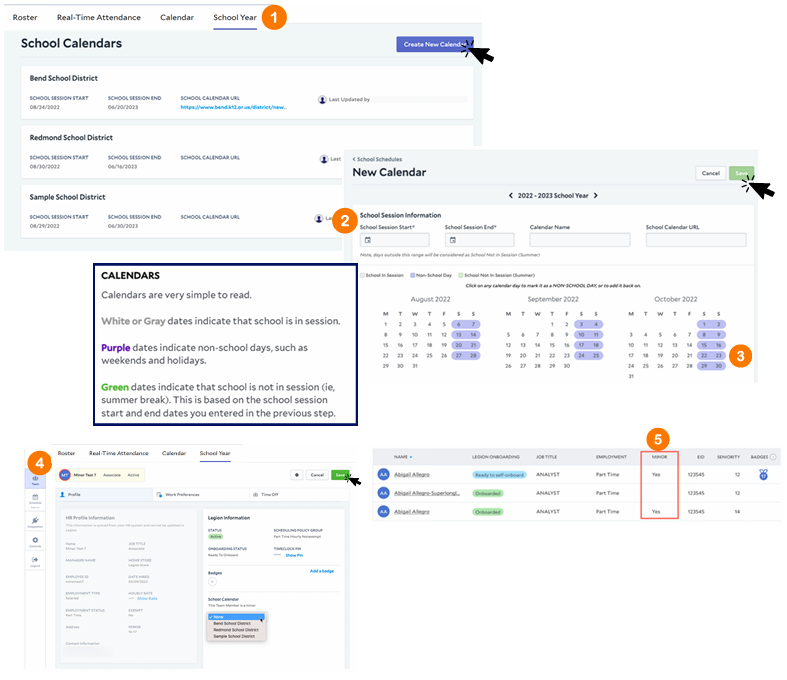
School Calendars
Managers can easily create a new school calendar to set the school session start and end dates.
1. Go to Team>School Year.
2. Add
- School Session Start and End dates and URL (URL Optional)
- Standard holidays and weekends will be defaulted in the calendars as a starting point.
- Click on any calendar day to mark it as a non-school day if needed.
3. Managers can add winter, spring break and additional school holidays observed by quickly clicking on the dates.
4. After setting the calendars, Managers can go to the Roster and select the Team Members to assign a specific calendar.
5. The Roster also displays a Minor flag so Managers know if they need to assign a calendar to the Team Member.
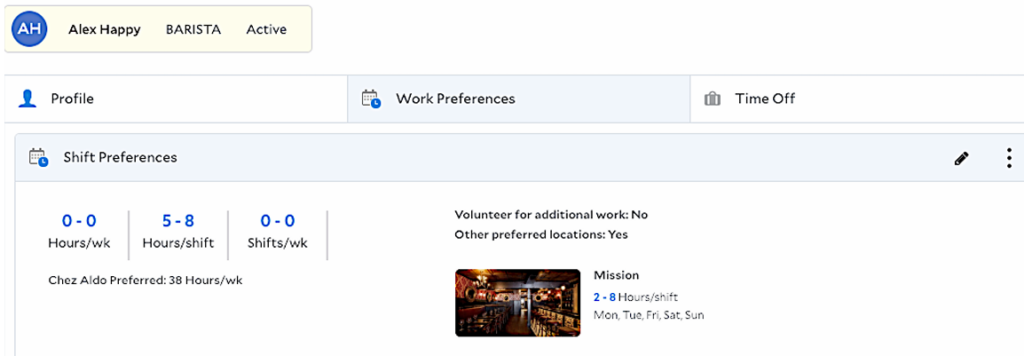
Team Member Setup: Location Sharing
See Locations subscribed by the Team Member under the Work Preferences tab.
SCHEDULE CREATION & EDIT UPDATES
THE PLAY:
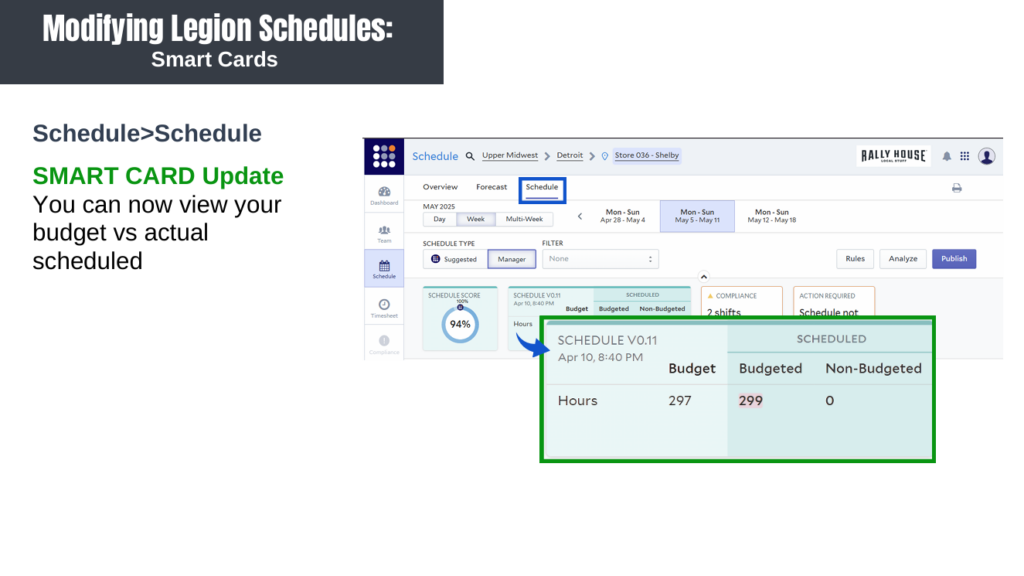
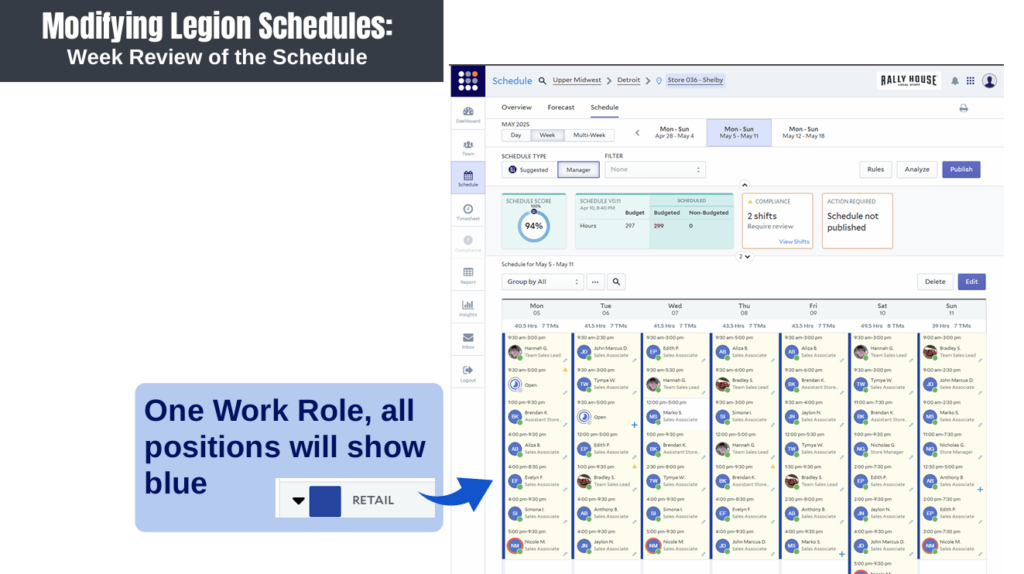
Building and reviewing schedules in Legion helps stores create balanced coverage that supports the business, the Guest experience, and Team Member availability. Legion provides visibility into budgeted hours, staffing coverage, scheduling trends, and open shifts so leaders can make informed scheduling decisions before publishing the schedule.
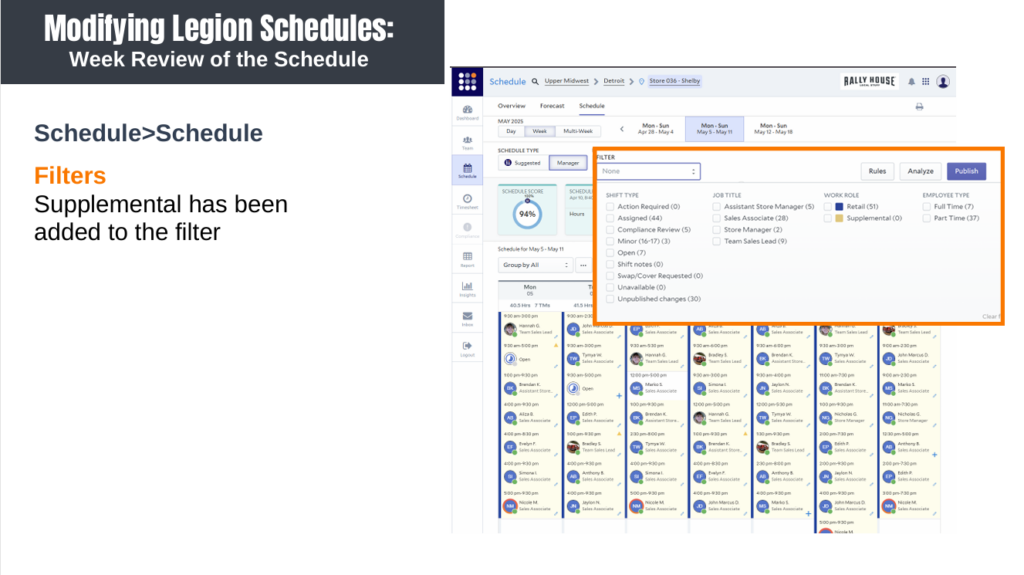
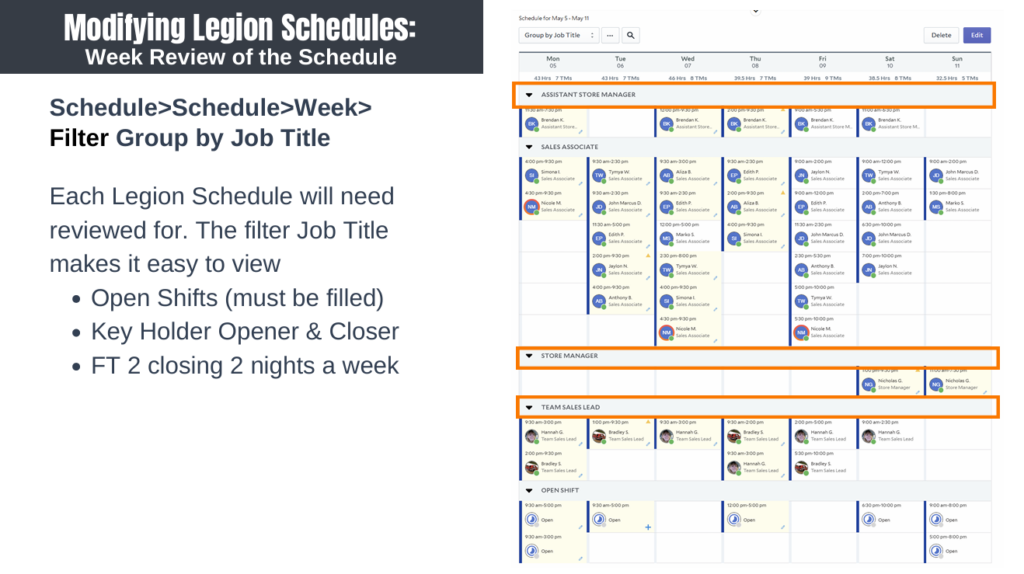
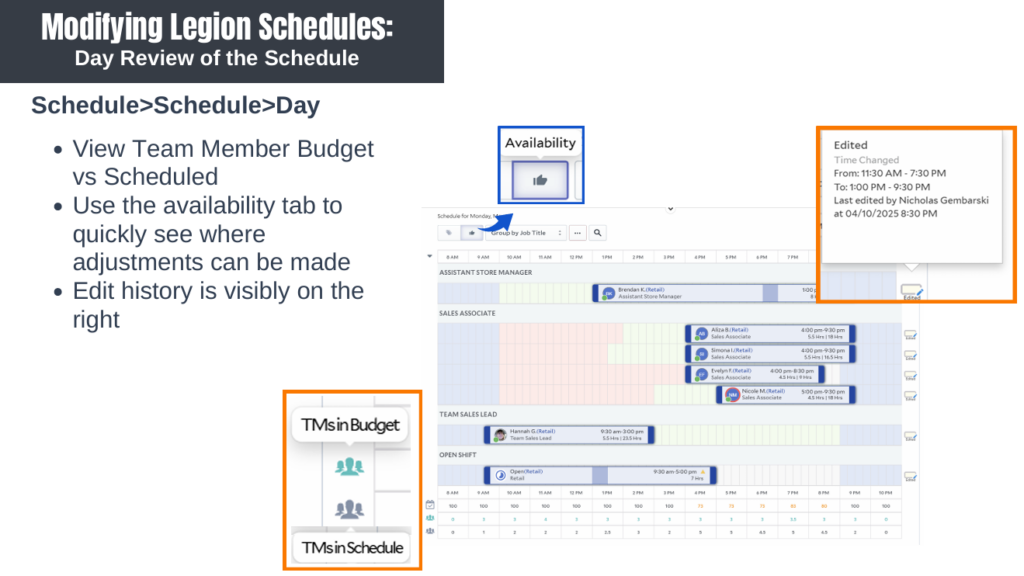
This section covers how to review, edit, and validate schedules using Day, Week, and Multi-Week views, along with key tools like filters, smart cards, coverage visibility, and shift creation.
IMPACT:
Consistent schedule review helps ensure stores are properly staffed while staying aligned to payroll expectations and operational needs.
Using Legion’s scheduling tools allows leaders to:
- Identify and resolve open shifts quickly
- Balance staffing against budgeted hours
- Review coverage by role and work group
- Monitor scheduling patterns across multiple weeks
- Make informed adjustments using Team Member availability
- Support fair and consistent scheduling practices
Proactive schedule management also helps improve operational execution, reduces scheduling conflicts, and creates a stronger experience for both Team Members and Guests.
GAME PLAN

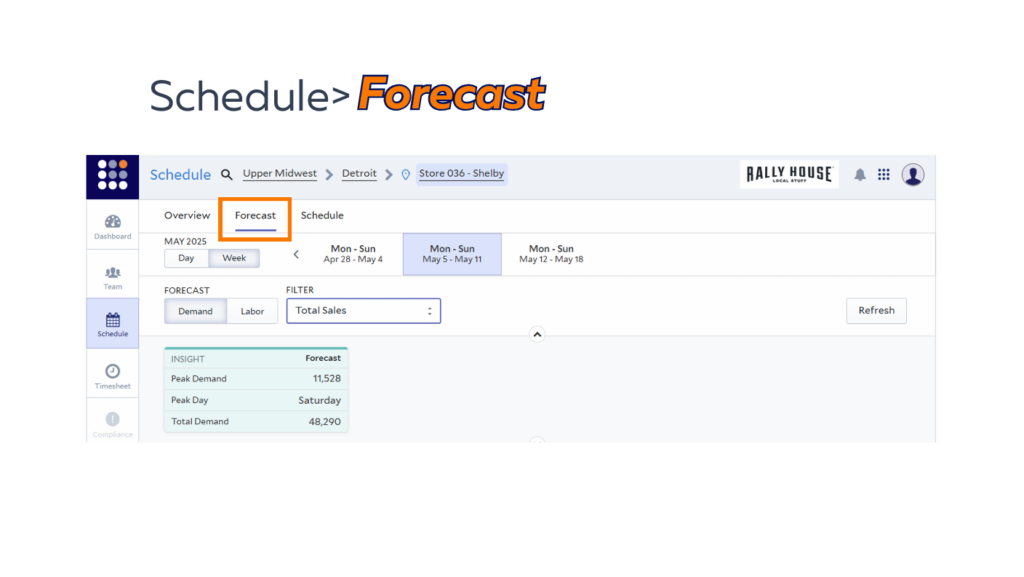
LEGION FORECAST
THE PLAY:
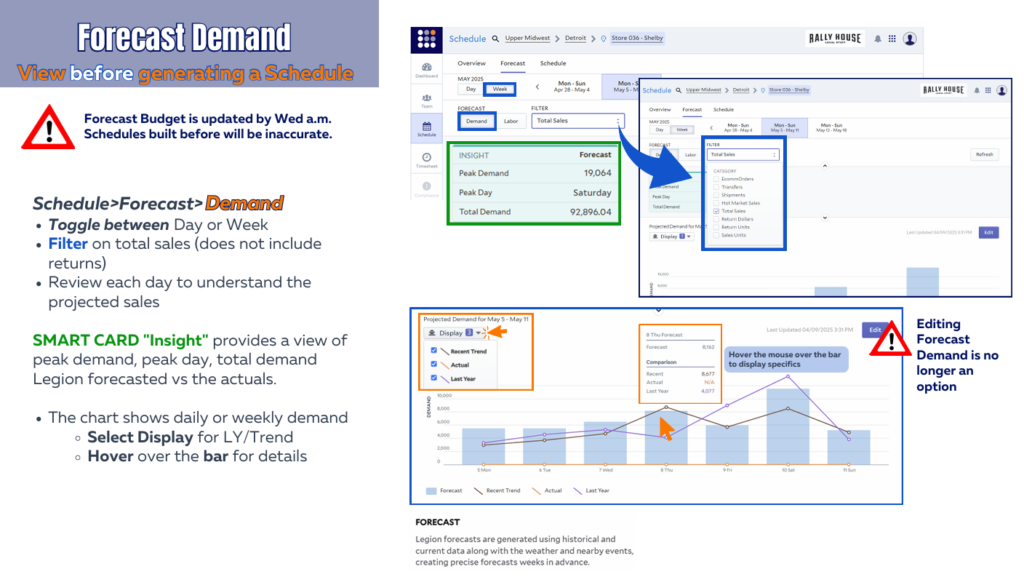
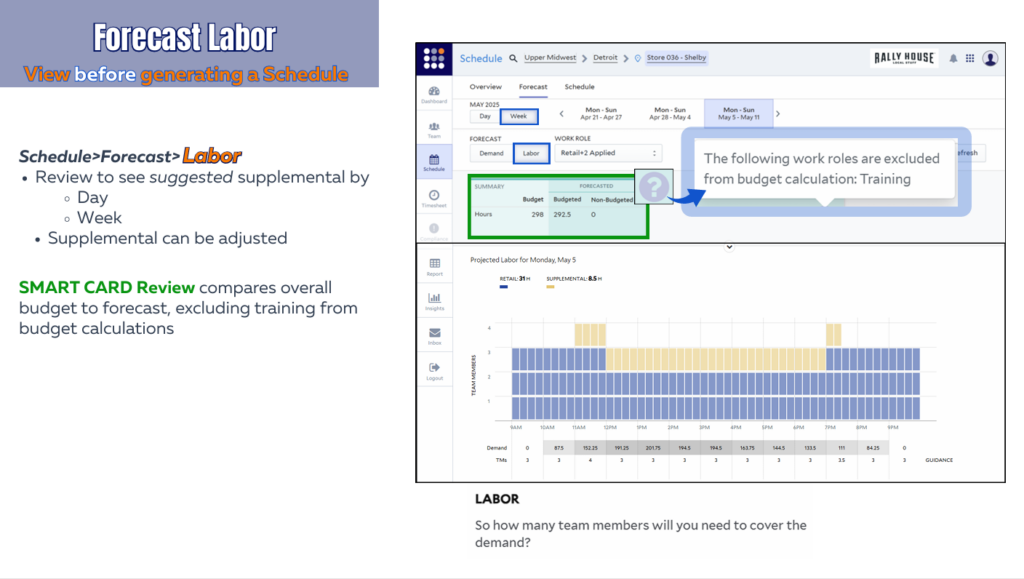
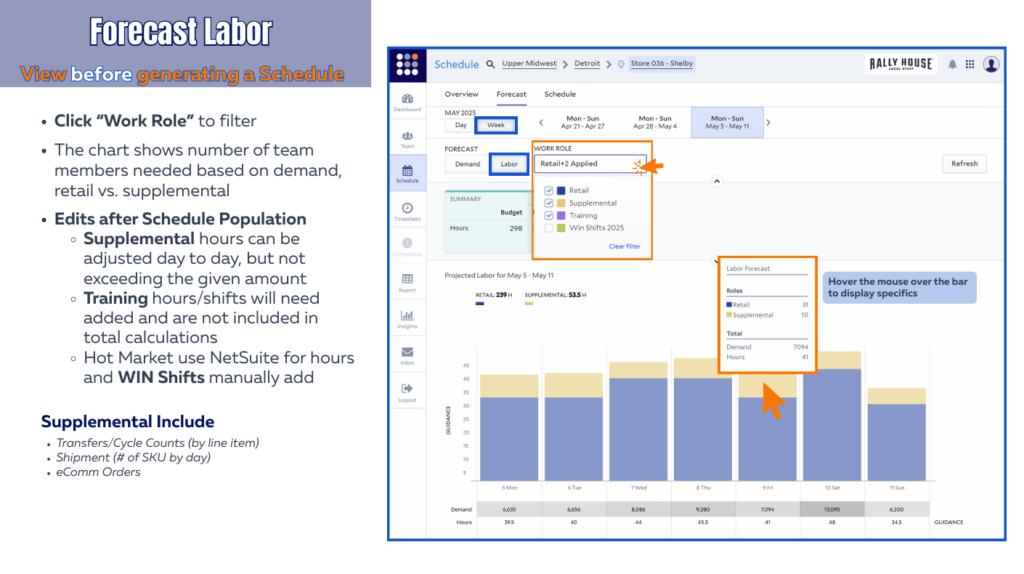
The Forecast tools in Legion help leaders review projected sales demand and labor needs before building schedules. Reviewing Demand and Labor forecasts allows stores to align staffing coverage with expected business volume, supplemental workload, and operational activity throughout the week.
This section covers how to use Forecast views, Demand insights, Labor projections, filters, and forecasting smart cards to support stronger scheduling decisions before schedules are generated or published.
IMPACT:
Using Forecast tools before creating schedules helps stores build schedules that better align with projected business needs and payroll expectations.
Reviewing forecasted demand and labor supports:
- Improved staffing alignment during peak business periods
- Better visibility into supplemental workload needs
- More accurate labor planning before schedules are published
- Stronger decision making around retail and supplemental hours
- Reduced risk of over or under scheduling
Forecast review also helps leaders proactively identify coverage needs related to shipments, transfers, cycle counts, eCommerce orders, and seasonal business trends so adjustments can be made before the schedule is finalized.
GAME PLAN