
Follow this guide when using Gladly to respond to a customer
Becoming Available for Work
Logging In
Your Gladly username and password are provided to you.
Logging in to Gladly
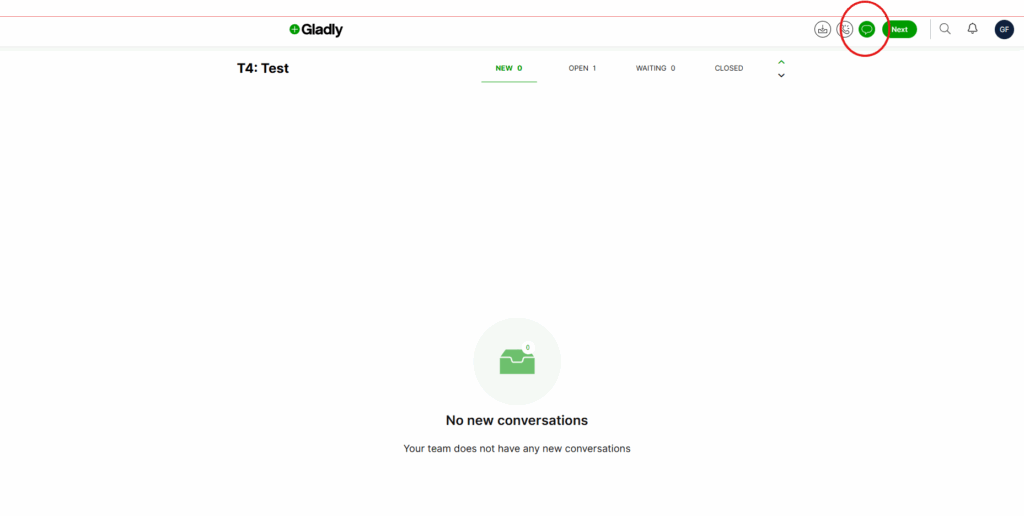
Becoming Available for Chat & Text
Becoming available for chats and texts is as easy as clicking a button.
Going available for Chat and Text
Becoming Available for Email & Task
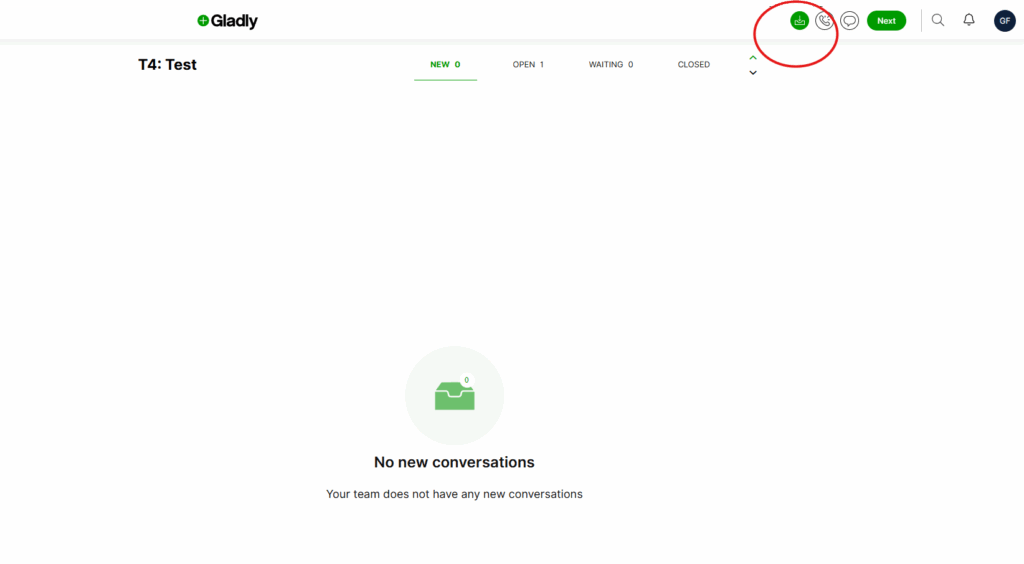
Becoming available for chats and texts is as easy as clicking a button.
Going available for Email and Task
Customer Service Conversation Workflow
Responding to the Customer
Responding to Chats & Texts
Customers who contact Rally House by Chat or Text expect quick responses. When answering customers via Chat or Text, always begin your conversation by greeting the customer.
- Greet the customer immediately by using the “Opening Greeting” shortcut. Customers using Chat and Text expect quick responses. Greeting the customer immediately lets them know they are connected with Rally House.
Responding to a Chat or Text
1. Open Gladly

2. Place yourself on available

3. Select the green plus button

4. Select “SMS”

5. Enter your response

6. Select “Send”

Responding to Emails
Customers who contact Rally House by Email do not expect immediate responses. When responding to a customer by Email, take your time to read the conversation and work through as much of the Customer Service Conversation workflow as possible.
- Work through as many steps of the Conversation Workflow as you can in one message. Customers do not expect immediate responses to emails. Emails allow you time to think about your response and provide excellent customer service even without back and forth conversation.
Responding to an Email
1. Open Gladly

2. Place yourself on available

3. Click here.
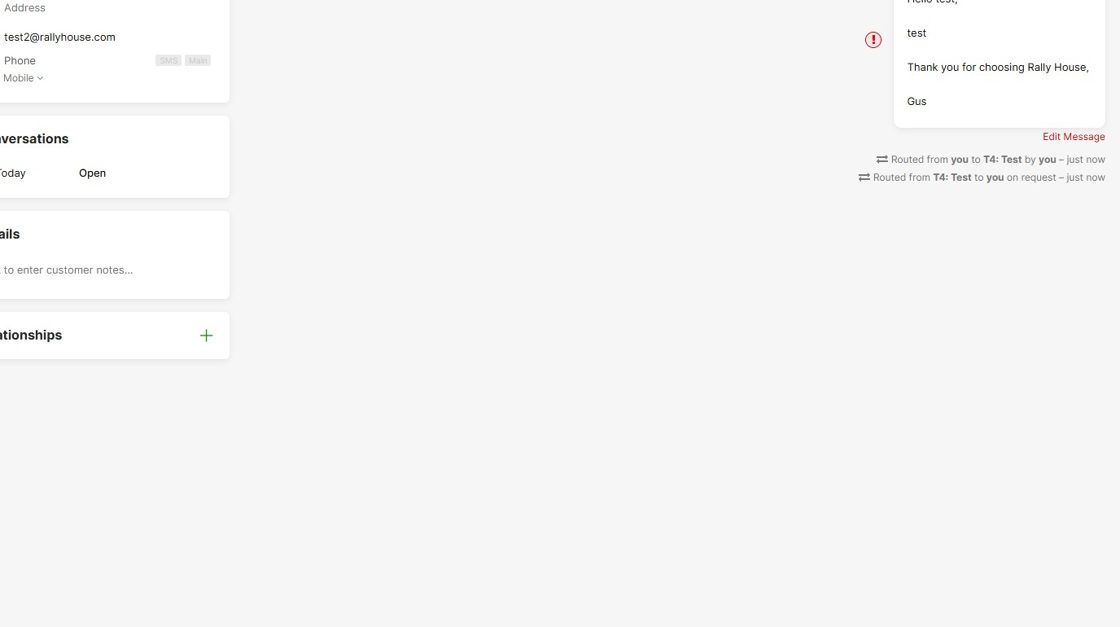
4. Select the green plus button

5. Select “Email”

6. Type out your response

7. Select “Send Email”

Responding to Tasks
Tasks are “to-dos” created by the system. These “to-dos” tell you to reach out to the customer. Reach out to the customer to complete the “to-do” and close the Task.
- Work through as many steps of the Conversation Workflow as you can in one message. Customers do not expect immediate responses to voicemails. Voicemails allow you time to think about your response and provide excellent customer service even without back and forth conversation.
Responding to a Task
1. Open Gladly

2. Place yourself on available

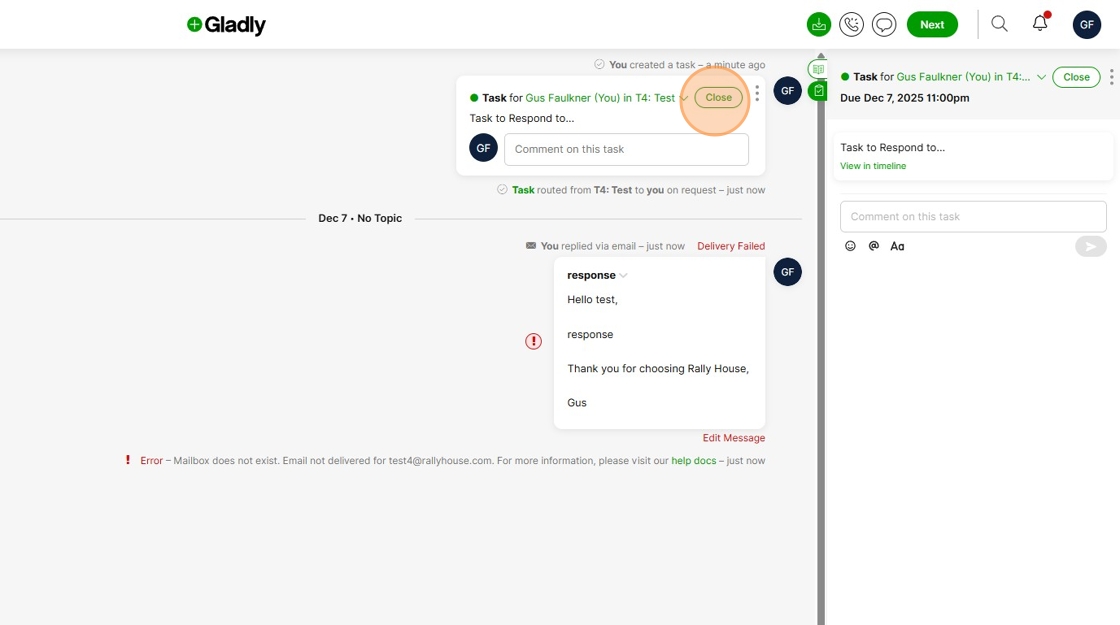
3. This is a task

4. Select the green plus button

5. Select “Email”

6. Type your response to the customer

7. Select “Send”

8. Navigate back to your task and select “Close”
Taking Action for the Customer
The customer has not responded
There are times when you may not have enough information from the customer to proceed. If you are waiting for a customer’s reply before moving forward. Allow the customer 10 minutes to respond, then close the conversation.
Closing a conversation without a resolution
The customer needs to speak with the customer service team
There are times when you may not be able to assist the customer any further. Gather as much information as possible from the customer and transfer their conversation to the appropriate team.
- All seasonal support transfer statements will begin with “Holiday Transfer”
Transferring a conversation
The customer’s issue has been resolved
When a customer’s issue has been fully resolved, close the conversation. End the conversation on a positive note and follow the guide below to close the conversation.
Closing a resolved conversation
1. Navigate to your resolved conversation

2. Select the green plus button

3. Select the channel you are using to communicate with the customer

4. Select the book icon

5. Select the “Search Answers” field.

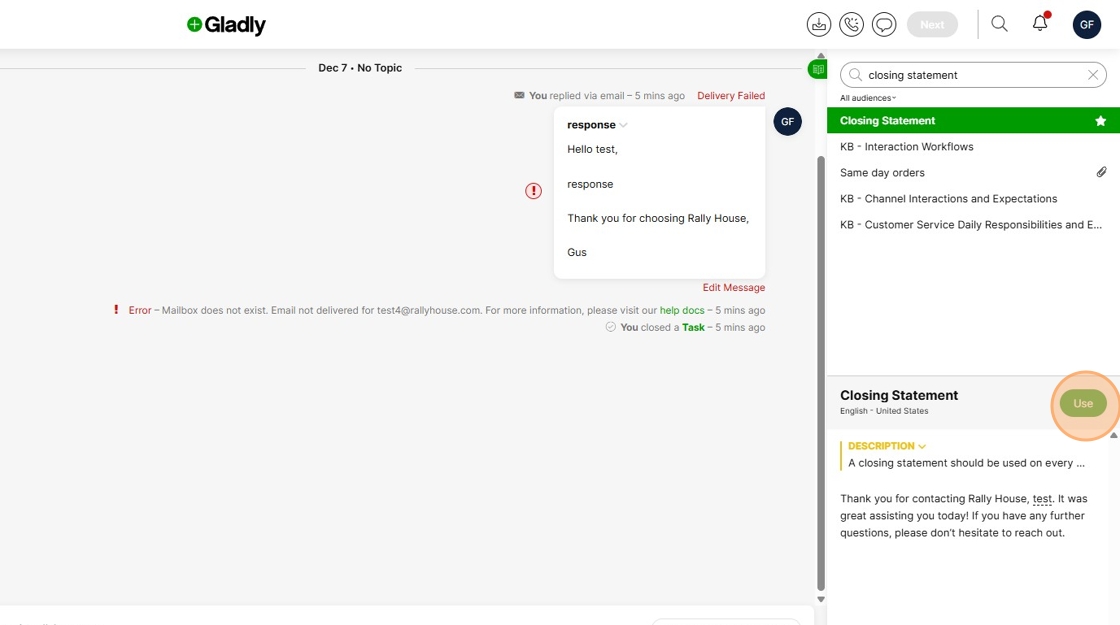
6. Type closing statement and select “Use”
7. Select “Add a Topic”

8. Add the topic that best fits your conversation

9. Select “Send Email”

10. Select”Close & Next”
