Skip to content
- Pull this search for New Items not ordered
- Input Approved Order Quantity
- Double check the Ship, Cancel, Vendor PO Export Status
- Vendor PO Export Status Needs to be approved to go directly into POA
- Use the saved import – Create Reorder Request
- To Manually set up the import or check mapping requirements:
- Open the Import Assistant
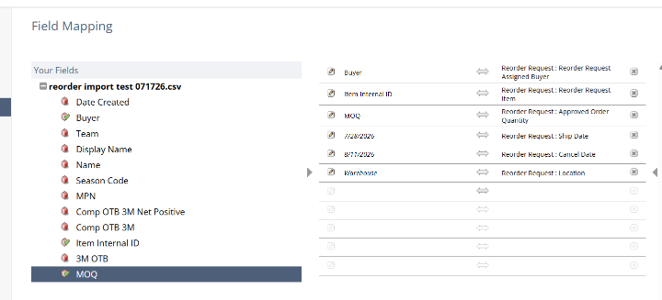
- Map location if wanting to send to a specific ship to location, otherwise it will default to Warehouse
- If multiple ship to locations are needed, add the column to your data spreadsheet before importing
- Scan and Upload .csv file
- Import type = Custom Records
- Record Type = Reorder Request
- Select .csv file
- Press Next
- Import Options
- Select Add
- Advance options
- Use the Standard Reorder Request form
- select multi threading
- Press Next
- Field Mapping
- To set Ship Date, Cancel Date, and or Location; Either add them to the import.csv or set them within the field mapping on the import assistant.
- If you ar eready to move them directly to POs
- Add Order status to the field Mapping
- Set status to “Create Order”
- Press Next
- Save Mapping & Start Import
- Open your reorder request search to view the import reorder requests