
EXCLUSIVE FULFILLMENT
LOCATION
Standard Operating Procedure & FAQ
Flags and Click Home buttons are clickable to make it easy to navigate the page





INTRODUCTION
THE PLAY:
Exclusive Fulfillment Locations are designated stores that support Hot Market events by managing and processing online orders, allowing Hot Market stores to stay focused on delivering an exceptional in-store experience for customers. When a Hot Market is activated, online order volume increases rapidly, and this model routes fulfillment responsibility to these locations to create a more efficient and streamlined operation across all stores.
These locations act as centralized fulfillment hubs, receiving, processing, and shipping online orders quickly and accurately. By shifting this workload away from Hot Market stores, Team Members in those locations can remain focused on sales floor execution, customer engagement, and maintaining strong in-store presentations during high-traffic events
IMPACT:
This playbook ensures Exclusive Fulfillment Locations operate with speed, accuracy, and consistency during Hot Markets, allowing stores in active markets to stay focused on delivering a strong in-store customer experience while fulfillment is handled seamlessly behind the scenes.
ON FIELD TERMINOLOGY
- Exclusive Fullfillment (EFL): A designated store responsible for processing and shipping online orders during Hot Market, allowing frontline stores to focus on in-store customers.
- Hot Market: Hot Market is a high-impact moment when a team wins a conference or championship, driving immediate fan demand.
BACK OF HOUSE SETUP
THE PLAY:
The Back of House setup creates a structured workspace that supports fast, accurate online order fulfillment during a Hot Market. Dedicated areas for receiving, bin management, packing stations, and product placement ensure a smooth flow from intake to shipment. Organized bins, clearly labeled racks, and properly equipped packing stations allow Team Members to quickly locate, pick, pack, and move orders without unnecessary steps or confusion.
IMPACT:
A well-organized setup improves speed, accuracy, and efficiency during high-volume events. Clear structure reduces search time, limits errors, and allows multiple Team Members to work seamlessly at the same time. This enables Exclusive Fulfillment Locations to handle increased order volume while keeping Hot Market stores focused on the in-store customer experience.
GAME PLAN
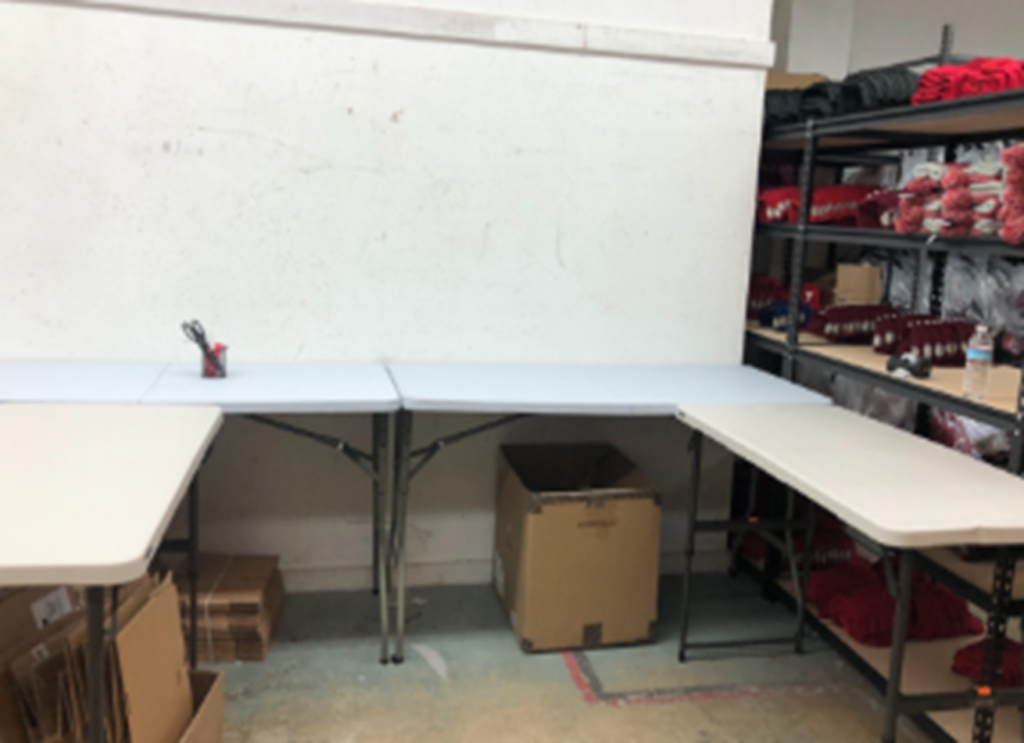
Setting up the Receiving Station
- Receiving area is comprised of 4ft and/or 6ft adjustable height tables.
- These are positioned to create a “U” shape.
- Break down and keep shipment boxes to be used for transfers later.
Setting up the Bins and Bin Racks
Building Empty Bins
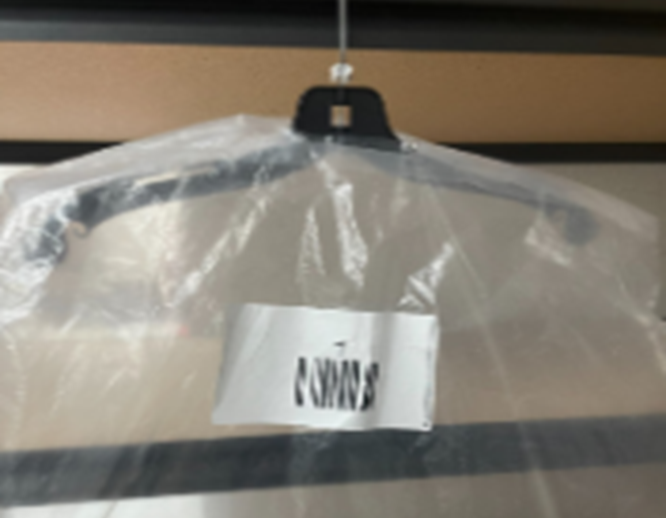
- When adding the bin numbers for the clear bags, print the bin numbers on to 4×6 UPS labels and place them directly on the clear bag.
Bin Racks
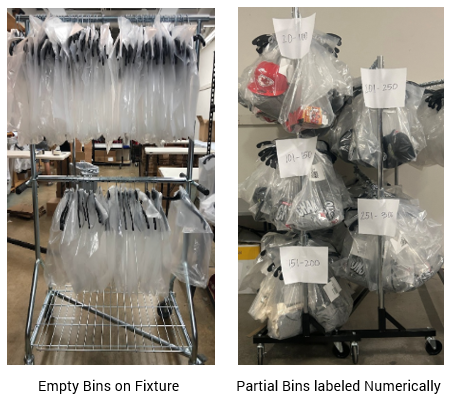
- Empty bins are to be kept on the allocated fixture.
- Place empty bins in number order.
- Label the rack with the bin number range.
Partial Racks
- Orders that are partially picked and waiting for remaining items to be picked.
- Bins must be placed back in number order to easily locate when needed.
Trouble Rack
- Designate a rack for “trouble” bins.
- These could be bins that say they’re in use but physically empty.
- Bins that are ready to pack but are not shown on the packing list.
- Orders ready to pack with address errors.
- Orders with the “Stop – This order may have already been shipped” error.
Setting up the Packing Station
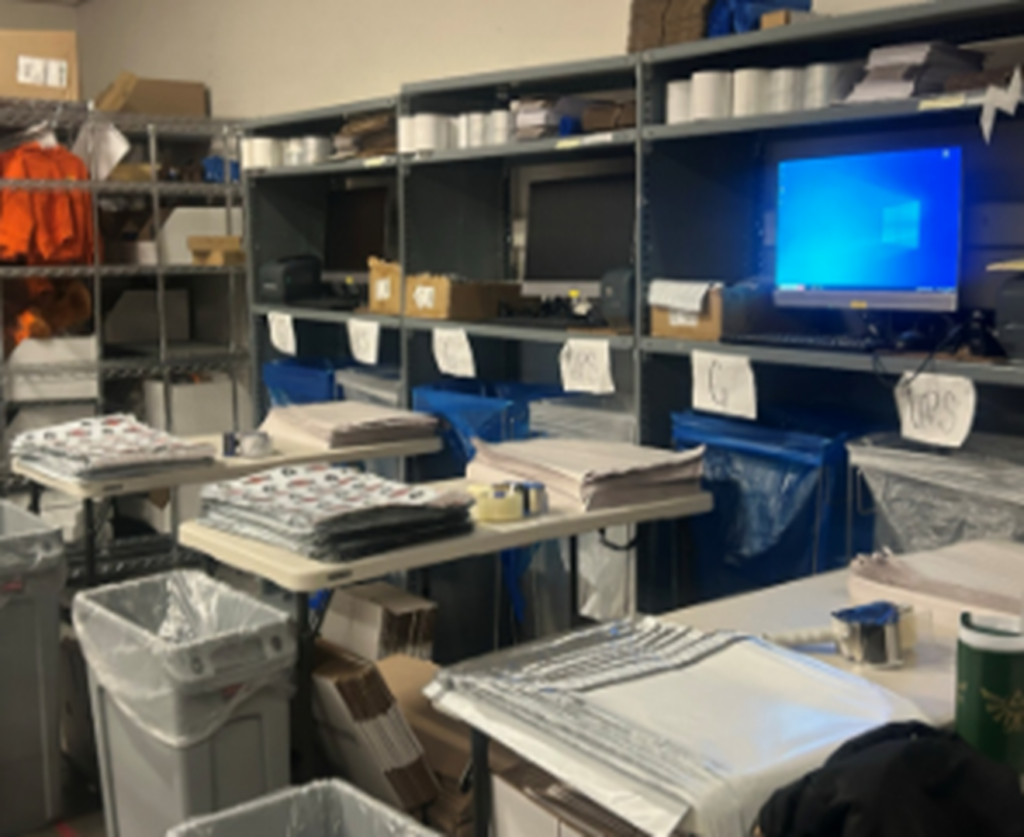
- IT will send equipment for each packing station mapped for your store.
- This will include a computer, keyboard, mouse, and UPS printer.
- Place all IT equipment on a shelf approximately 36″ high from the ground.
- Position outbound bins directly below this shelf.
- This allows packers to place orders into their designated outbound bin without moving from the station.
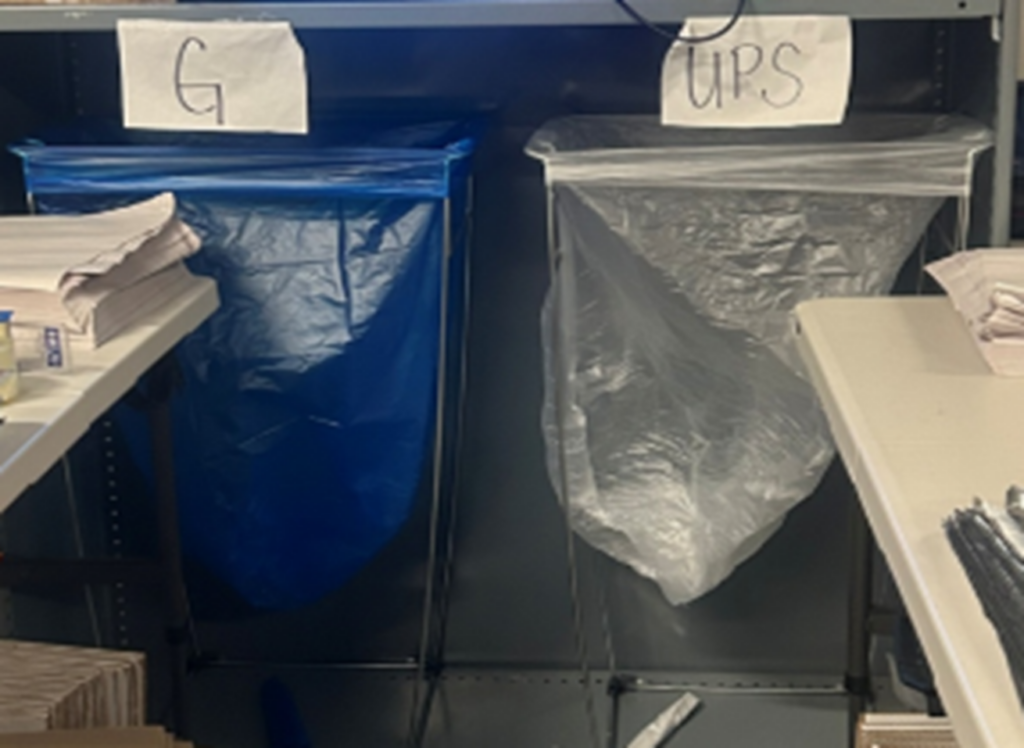
- Yellow Bags are for USPS bins.
- Clear Bags are used for UPS bins.
- Bags can be ordered from Amazon from the “EFL Location Catalog” that these specific stores have access to.
- When bags are full remove and place in the mapped outbound area.
- This allows packers to place orders into their designated outbound bin without moving from the station.
- Extra shipping supplies can be placed above the IT equipment.
- If space and time allow, build hat boxes and stack next to the packing station for quick use.
Setting up for Apparel Placement
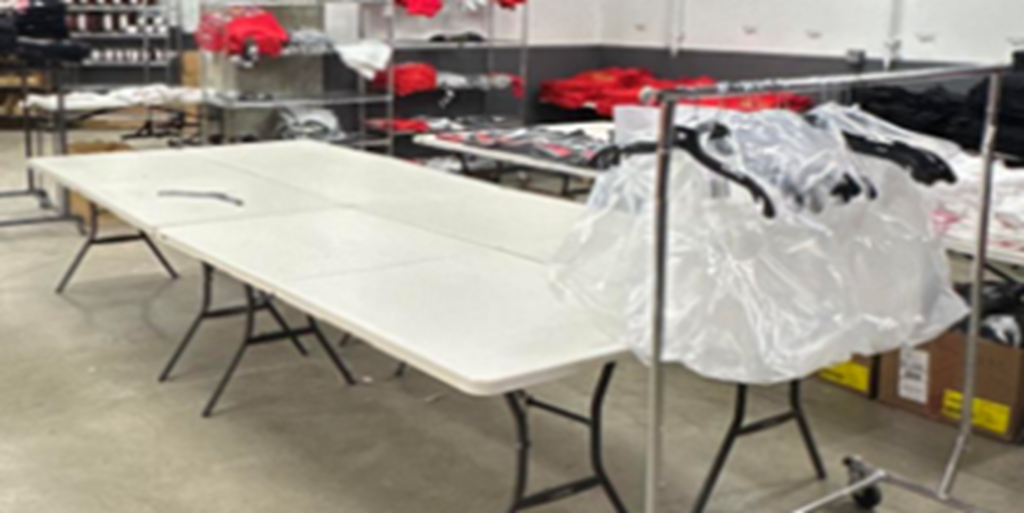
Setup banquet tables
- Apparel is first placed on banquet tables.
- Place the tables back-to-back and/or against a wall, keeping a walkway between.
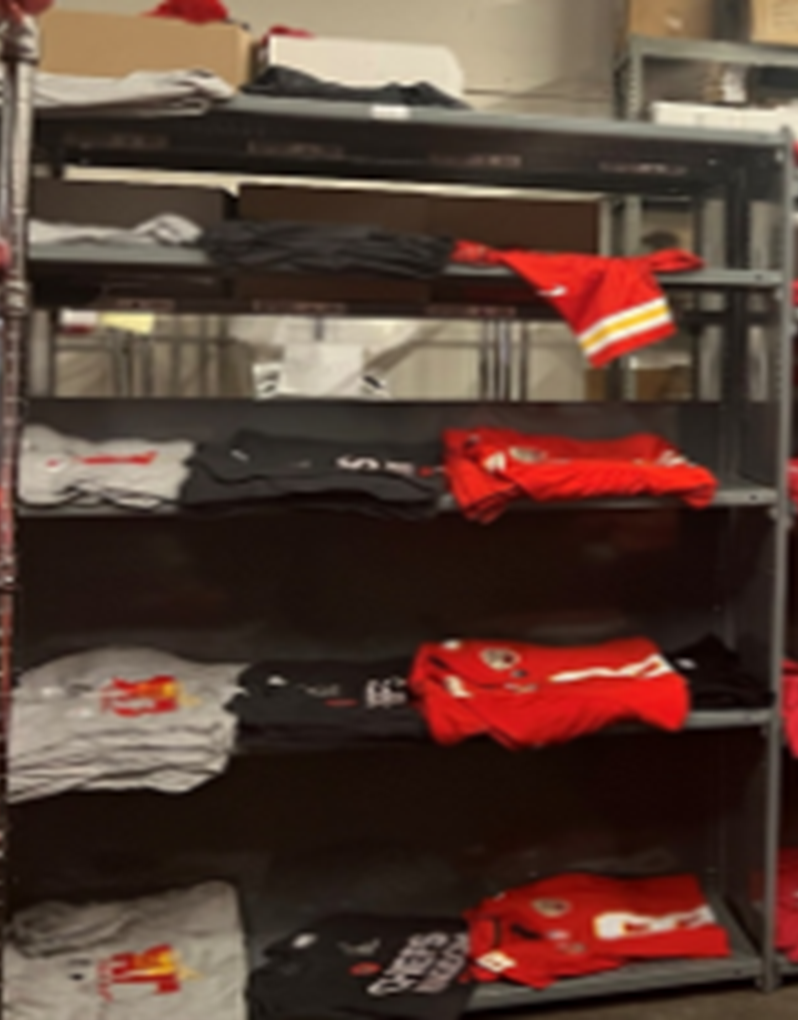
Setup Baker’s Racks
- Smaller quantities of apparel and/or broken size runs are placed on baker’s racks.
- Designate specific areas for Women’s, Men’s, Kid’s/Toddler/Infant to keep departments together.
- Do NOT place Women’s next to Kid’s as the styles are easily mixed up.
- Label the shelves Small – 2X/3X from bottom to top
Setting up for Hardlines Placement
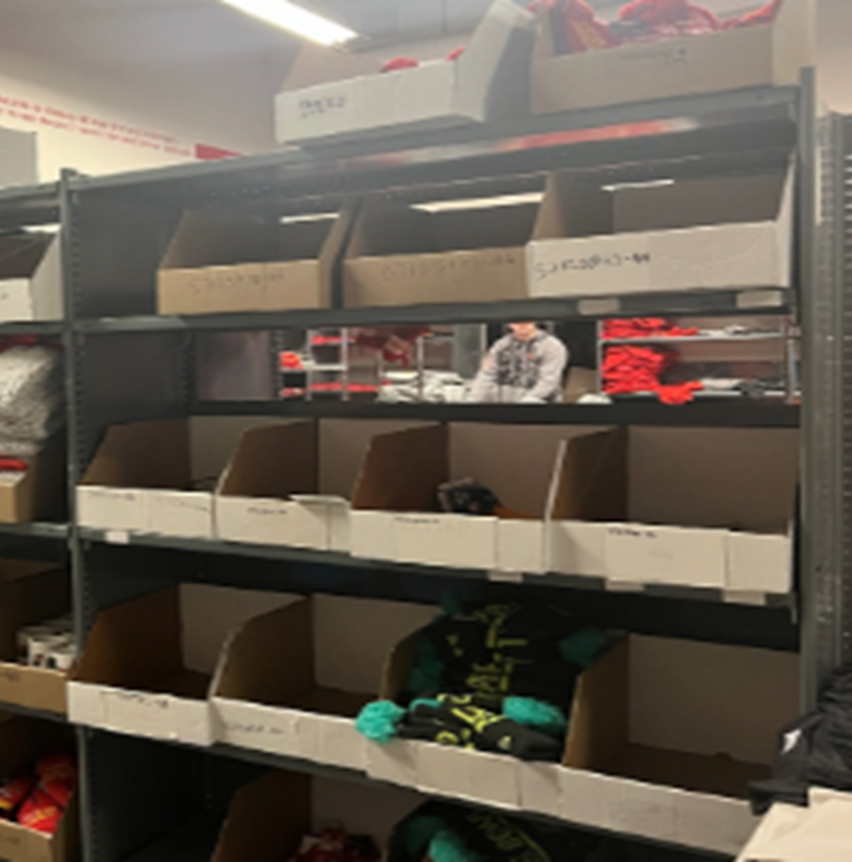
- Setup baker’s racks/shelving units with white bins.

RECEIVING AND PLACEMENT
THE PLAY:
Receiving and placement ensures all products are accurately received, verified, and organized for fulfillment. Shipments are processed in PORT, reviewed for quality, and properly tagged so all items are scannable. Product is then placed into designated areas by style, size, and department to create a clean, easy-to-navigate setup.
IMPACT:
A consistent process improves speed and accuracy from the start. Organized product reduces search time, prevents errors, and keeps Team Members moving efficiently, allowing Exclusive Fulfillment Locations to handle volume and support Hot Market stores.
GAME PLAN
Receiving Shipments
- Sort boxes by PO# before receiving.
- Many POs will arrive in multiple boxes; try to gather all boxes for the PO together before receiving them.
- Receive POs in PORT.
- Double-check the image in PORT matches the product sent.
- Review for damaged/defective units before completing the receipt.
- All PO issues need to be reported immediately through PORT and then by using Help Chat.
- Escalate as needed.
- Re-tag as needed.
- All products must have a scannable tag that shows the style number.
- Apparel without a vendor hang tag should have the tag placed on the top left center.
- Break down and keep the shipment boxes to be used for transfers later.
Apparel Placement
Banquet Tables
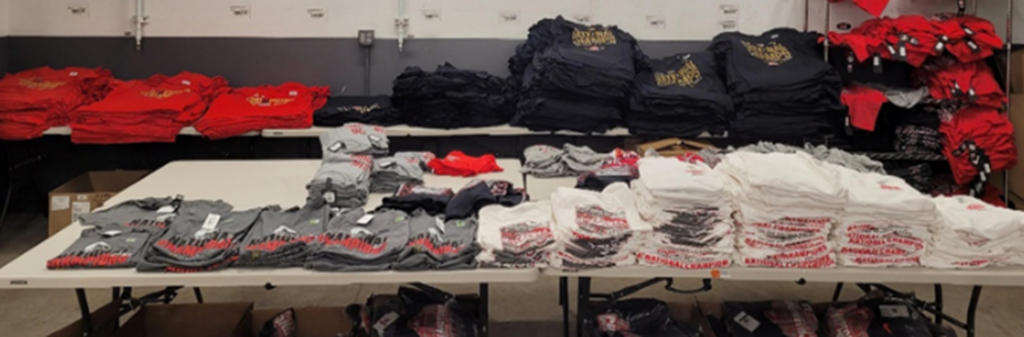
- Apparel is first placed on the banquet tables.
- Keep full styles together. Separate styles by size with the logo and style number visible.
- Tip: If space allows designate areas for short sleeve, long sleeve, sweatshirt/hood and alternate colors of garments to keep organized.
- Excess units can be placed in open boxes by size underneath the tables.
Baker’s Racks
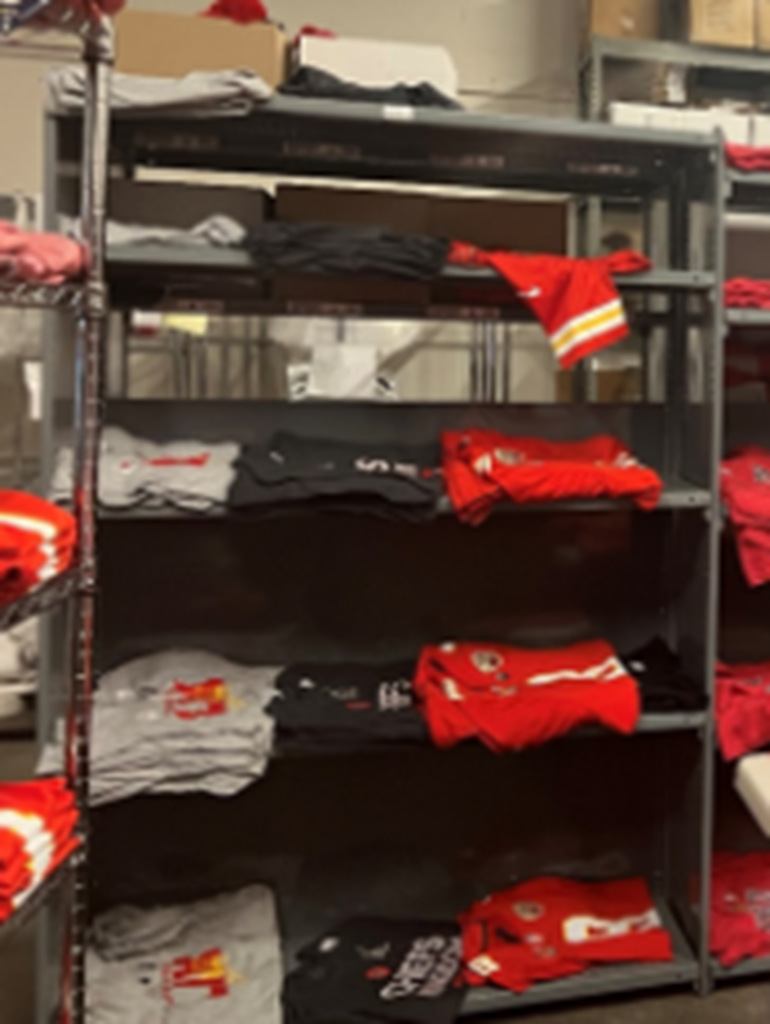
- Use baker’s racks to place apparel with smaller quantities and/or broken size runs.
- Designate specific areas for Women’s, Kid’s/toddler/infant to keep departments together.
- Tip: Do not place Women’s next to Kids as the styles are easily mixed up.
- One size per shelf, Small – 2X/3X from bottom to top.
Hardline Placement
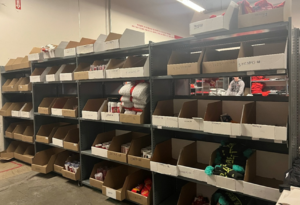
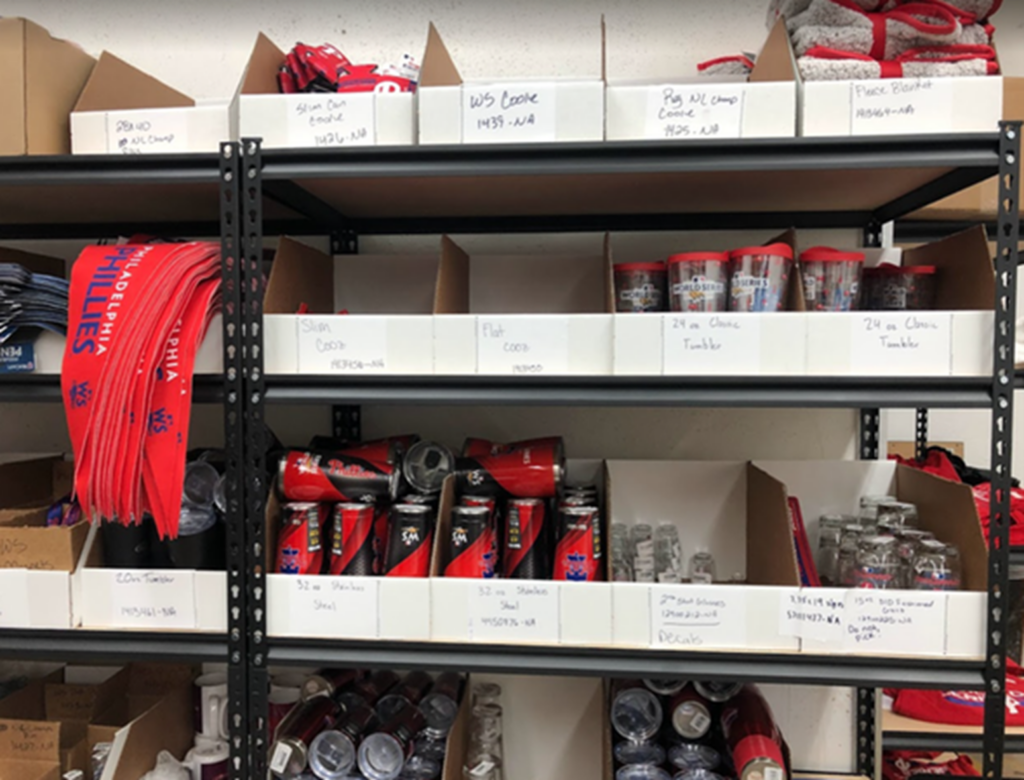
- Place hardlines in white bins on a baker’s rack/shelving unit.
- One style per box.
- Label the outside of the bin with the style number and description of the item inside.
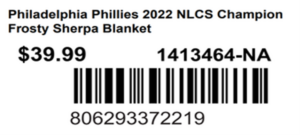
- Tip: Print a price tag for the item on a 4X6 label and place on the outside of the box.
PICKING AND PACKING ORDERS
THE PLAY:
Picking and packing ensures orders are assigned, picked, and shipped efficiently. Orders are prioritized in SMUCC, starting with simple fulfillments and moving to more complex orders. Items are picked in sequence, then packed one at a time with a focus on accuracy and proper handling.
IMPACT:
A clear process improves speed and accuracy while reducing errors and duplicate work. This allows Exclusive Fulfillment Locations to maintain strong execution and keep up with Hot Market demand.
GAME PLAN
Assigning Orders to Pick using SMUCC
- Open the Hot Market tab in NetSuite.
- Use the “Employees IDs” portlet to locate the employee needing orders.
- Copy the ID number for the employee.
- Use SMUCC (yellow smiley face in the Assign Muse User portlet) to assign orders to the pickers.
- Paste the Employee ID in the Employee Name or ID field.
- Under Muse User Assignment Logic, select the type of order to assign.
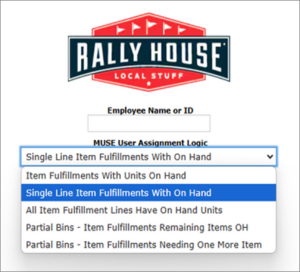
Single Line-Item Fulfillments with On Hand.
- Hot Market-Single Item Orders (items OH that only have 1 item, so easy completion, should always be done first)
- Note: The Reminder’s portlet will always say 0. Open the report from the Reminder’s portlet or use the designated ‘Single Item Orders’ portlet.
All Item Fulfillment Lines Have on Hand.
- These should be assigned once all Single Line-Item fulfillments have been completed.
- These orders will be ready to fully pick and complete.
Item Fulfillments with Units on Hand.
- These will create partial bins.
- Only assign these orders if all others have been fully assigned.
Partial Bins – Item Fulfillments Remaining Items OH.
- These will add to and/or complete partial bins.
Partial Bins – Item Fulfillments Needing One More Item.
- These will complete partial bins needing 1 item that is showing on hand.
- Hot Market-Orders Needing 1 More Item (these are partials that only need 1 more item that is OH)
- Note: The Reminder will always say 0 so open the report, but there is its own portlet
After orders have been assigned to a user, refresh the page before assigning orders to another user.
If the page is not refreshed, duplicate orders may be assigned and cause data collision.
Once there are no more items in SMUCC that assign:
- In SPOC, set status to “NO Hold”.
- Complete all orders.
- Once all “No Hold” are completed, select status “Hot Market” and scan the barcode of an item to pull orders containing the item.
- Other items may appear to pick to complete the order, do not skip these items if they are on hand.
- Once all “No Hold” and “Hot Market” orders have been picked, select a Team with status “Any Status” and pick any remaining orders.
- Repeat until done or run into partial or other issues and communicate to DM>RD>CS(KP)>JFM>PG
Packing Orders
- Refresh the ‘Complete Customer Orders’ search often to show all bins ready to pack.
- Only pack 1 order at a time.
- Do not print shipping labels for multiple orders at the same time.
- Print the shipping label and completely pack the order before moving on to the next order.
- Double check the style numbers, sizes, and quantities match the order in NetSuite before packing.
- Double check the item is not damaged/defective before packing.
- Pack with care.
- Fold shirts before placing them in a poly bag/box.
- Hats and fragile hardlines must be shipped in boxes.
- Fragile hardlines/drinkware must be bubble wrapped and the box should pass the shake test.
- Pennants should be loosely rolled and shipped in boxes.
- If there is an address error or quantity/style issue while packing, place the item(s) back in the bin and hang on the trouble rack.
- Alert a leader of the issue and communicate the error and/or note it on the bin.
- Place packed orders in the designated outgoing UPS / USPS areas.
- UPS must scan each package at pickup.
- If this does not occur, escalate the issue immediately.
MANAGEMENT AND ORGANIZATIONAL TOOLS
THE PLAY:
Management and organizational tools provide structure, visibility, and oversight to keep fulfillment running smoothly. Leaders are assigned to key areas, including order assignment, picking/packing, and receiving, while tools in NetSuite are used to track order progress, inventory, and incoming product. Regular organization, equipment checks, and bin management ensure the operation stays clean, functional, and aligned.
IMPACT:
Strong organization and clear ownership improve efficiency, reduce errors, and keep operations on track. Visibility into orders, inventory, and issues allows teams to act quickly, maintain flow, and prevent delays, ensuring consistent performance during high-volume Hot Market events.
GAME PLAN
Designate Leaders
- A leader to assign the orders in SMUCC and resolves the trouble rack.
- A leader to oversee picking/packing stations.
- A leader to oversee the receiving and product placement and resolve issues as they arise.
Keep Partial Bins organized.
- Ensure partial bins are placed back on the designated rack in numerical order.
- Review Stores-Customer Orders Partial Bins to verify the physical partial bins are listed on the report.
- If there is a physical partial bin that is not showing on the NetSuite report, the bin needs to be moved to the trouble rack for resolution.
Restock and Clean Up.
- Take time at the end of each shift to restock packing stations, organize/clean up tables and racks.
Test Equipment.
- Test all IT equipment at the beginning of each shift to avoid issues later.
- Escalate any issues immediately.
NetSuite Dashboard – Reminders Portlet
- Hot Market-Customer Orders
- The reminders’ portlet will show the total number of Hot Market units to fulfil Customer Orders.
- Clicking into the search will show the count of units to pull by style/size for Hot Market items.
- Hot Market-Single Item Orders
- This will show the count of orders for Hot Market items where there is only 1 item in the order, and the item is on hand to fulfill.
- The reminders portlet will always show 0. Click into the reminders search or use the Single Item Orders portlet to get a count of orders to complete.
- Hot Market-Customer Orders (Can Be Picked)
- This will show the count of Hot Market units to fulfill for Customer Orders where the item is on hand to fulfill.
- Hot Market-Orders Needing 1 More Item
- This will show the count of orders for Hot Market items where there is only 1 item left to complete the order and the item is showing on hand.
- The reminders portlet will always show 0. Click into the reminders search or use the Single Item Orders portlet to get a count of orders to complete.
- Stores-Complete Customer Orders (New)
- This will show the fully picked bins that are ready to pack and ship.
- Stores-Customer Orders Partial Bins
- This will show the count of partial bins for your location.
- Hot Market-Estimated Arrival Report (Field)
- This will show items on order with the estimated delivery date.
- Hot Market-Items ETA
- This will show the Hot Market units on order for your location and an estimated date of arrival if one has been provided.
- Hot Market-Incoming PO’s
- This will show the count of Hot Market POs expected to arrive soon.
- Clicking into the search will show the PO number, vendor, and tracking if it is available.
- Hot Market-TOE Transfers
- This will show the count of units to transfer.
- Clicking into the search will break down the units by store and show which transfers are ready to complete.
Bin Lookup Tool
- This will show all orders assigned to a specific pick bin within the last week.
- This is the date of the item fulfillment, not the date it was picked and/or packed.
- Enter the Pick Bin number and hit tab to view results.
- Maximize the portlet to see full results.
- Filter by Pick Bin, Style Number, and Date Range.
- Note: This filter is the date the item fulfillment was created, not the date it was picked and/or packed/shipped.
- The search will show all item fulfillment statuses sorted by status then by completed date.
- Picked: Highlighted in light green
- Packed: Highlighted in darker green
- Shipped: Dark Grey text.
Customer Order Progress Report
- This will show a report on Customer Order totals.
- Pending Orders
- Completed Orders Today
- HM Orders
- Partial Bins
- Packed Needs Shipped
- Oldest Order (In Hrs)
Customer Orders Shipped with No Tracking
- This will show any item fulfillments that have been marked shipped over 24 hours ago with no shipping label printed.
- These orders need to be researched and escalated as needed.
HM PO’s Selling into Negative Inventory
- This will show Hot Market items currently on order that have negative inventory.
- Maximize the portlet for full results.
- If these styles are physically on hand, they need to be received in PORT.
- Reach out to the Help Chat for assistance receiving if needed.
- Correcting negative on hands will allow more orders to be assigned in SMUCC
TROUBLESHOOTING AND ESCALATION
THE PLAY:
Troubleshooting and escalation ensure issues are quickly identified and routed to the right partners. Common receiving and order issues are escalated through Help Chat and designated channels to drive fast resolution.
IMPACT:
A clear process reduces delays and keeps orders moving. Quick resolution maintains accuracy and supports consistent performance during high-volume events.
GAME PLAN
Receiving
- Unknown PO.
- Reach out to the Help Chat immediately.
- Provide the style(s) and quantities that arrived along with any other information requested.
- Unknown Style Number.
- Reach out to the Help Chat immediately.
- Provide the PO number if possible and an image of the item.
- Image Mismatch
- Report image mismatches while receiving them in PORT and escalate to the Help Chat or EFL Teams Group Chat immediately.
- Damaged Items
- Report damaged units while receiving them in PORT and place them in your discrepancy area labeled with the PO number, style number, and issue type.
- Check your PO issues for directions.
- If there is no resolution within 24 hours, reach out to Help Chat.
Customer Orders
- If an image mismatch isn’t caught until picking, escalate to the EFL Teams Group Chat immediately.
- Do not ship the item.
- Address Errors while packing.
- Reach out to the Help Chat or EFL Teams Group Chat.
- Provide the item fulfillment number and error message.
- Other Errors while packing.
- “Whoa… Order might have already been shipped”
- Reach out to the Customer Service Help Chat or EFL Teams Group Chat.
- Item Fulfillment has a blue ‘Bill’ button.
- Reach out to Customer Service Help Chat or EFL Teams Group Chat.
- Item Fulfillment has ‘Cancel Order Action’ button.
- Reach out to Customer Service Help Chat or EFL Teams Group Chat.
- When picking orders, if the item cannot be found but shows on hand and gives the option to inventory adjust, ensure all orders have been packed before continuing.
- Items waiting to be packed count towards the inventory on hand until they are marked shipped.
CLOSING THE EFL
THE PLAY:
Closing the EFL ensures all orders are completed and remaining inventory is properly transferred. Transfers are executed through NetSuite once all customer orders are fulfilled, with any inventory discrepancies identified, corrected, and communicated. Incoming products and equipment are also managed to ensure a clean and complete closeout.
IMPACT:
A structured closeout prevents inventory issues, missed transfers, and delays. Clear communication and final reconciliation ensure product is routed correctly and operations are fully wrapped, supporting a smooth transition back to normal store operations.
GAME PLAN
Transfers
- Transfers will be created to move the remaining product to the in-market stores.
- Use Hot Market-TOE Transfers from the Reminders portlet.
- This will show the total number of units that need to be transferred.
- Ensure all Customer Orders have been picked/packed/shipped before beginning transfers.
Product left without transfers
- Create inventory correction requests for items that are physically on hand but not showing in inventory.
- Escalate after creating the requests so that transfers can be created.
- Communicate any styles/units that are showing on hand without transfers created.
Incoming PO’s
- POs may continue to arrive after the EFL has ‘Closed’ and transfers have been completed.
- Complete any Customer Orders pending for the items then communicate the styles/POs so that transfers can be created.
Equipment
- Communicate with IT about shipping back additional zebra devices and shipping stations.