When working on Open Credit Memos, open everything in separate tabs.
- On the home page of NetSuite under reminders click on CS-Open Credit Memos
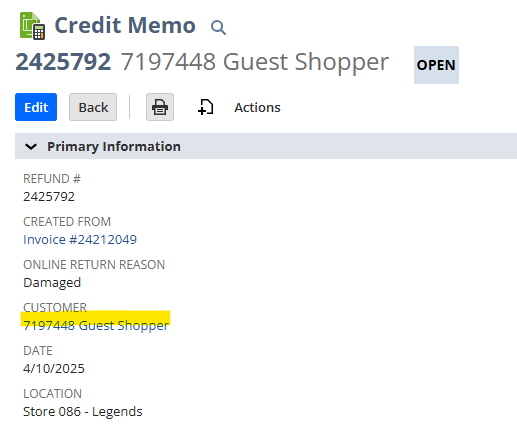
- Click on Credit Memo
- Open Customer record
- On the dark blue bar select sales
- Select All Transactions
- Make Type Credit Memo
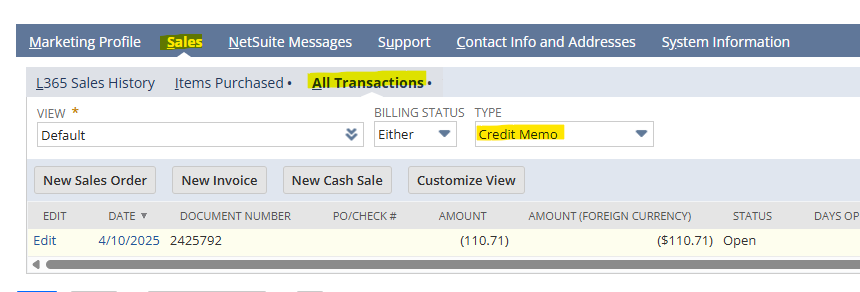
- If any credit memos look to be duplicates, select credit memo and open
- Duplicate credit memos will have the same number invoice
- If you found a duplicate credit memo already fully applied delete the copy that is open
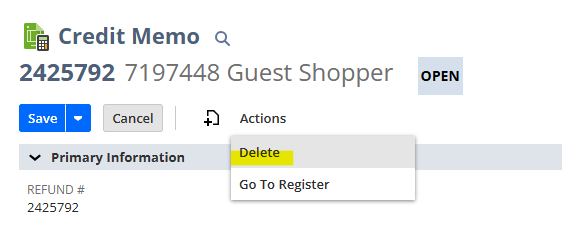
- Click Edit on the credit memo
- Hover over actions and select delete
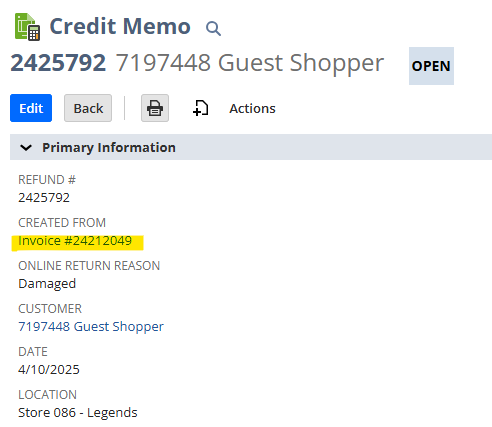
- If there is no duplicate credit memo in the customer record, go back to the credit memo and click on invoice
- Scroll to the dark blue bar and select related records
- Click on Payments (open all if there is more than one)
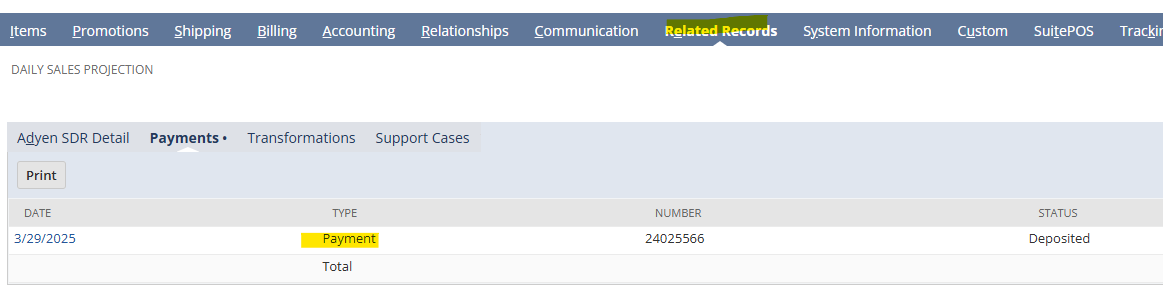
- If order has just one payment
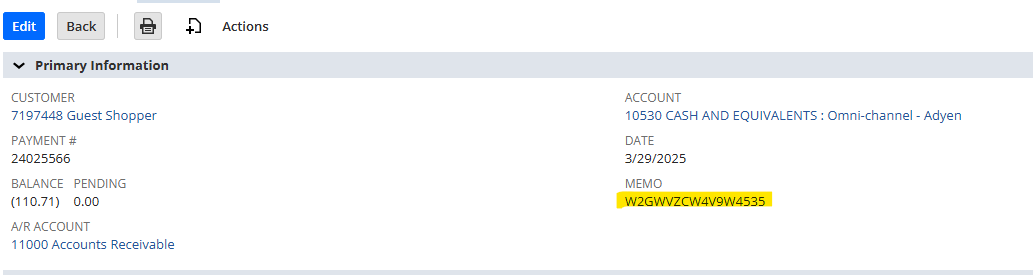
- Copy the PSP number under memo
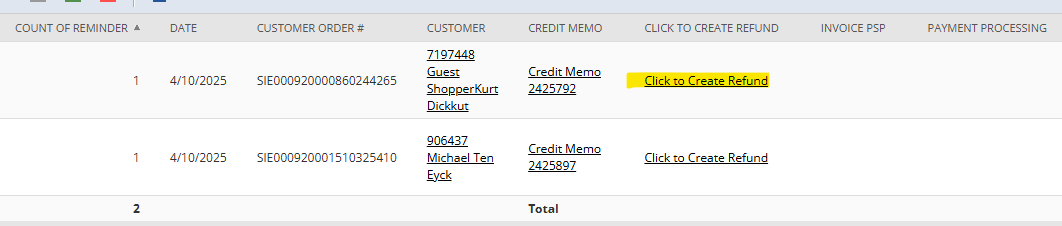
- Go back to the CS-Open Credit Memo results
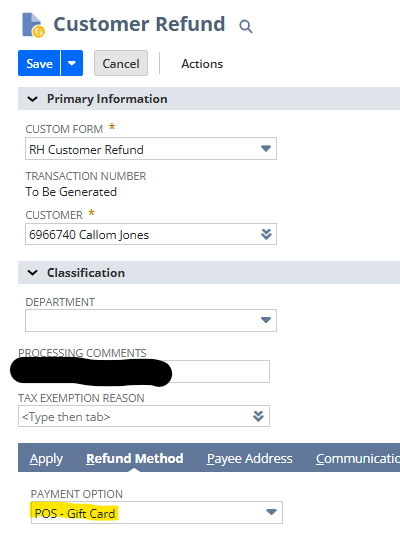
- Click to Create Refund
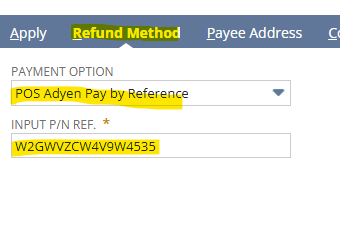
- Scroll to dark blue bar and select refund method
- There are four options to use
- POS-Gift Card
- Rally House Gift card
- Adyen Pay By Reference
- Orders before October 2024
- POS Adyen Pay By Reference
- In Store Orders
- Sitoo Adyen Pay By Reference
- Orders after October 2024
- POS-Gift Card
- You will select the option based on the payment in the invoice
- There are four options to use
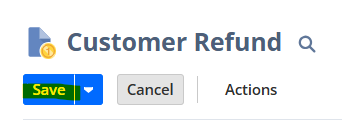
- Click Save
- If order was paid with a gift card
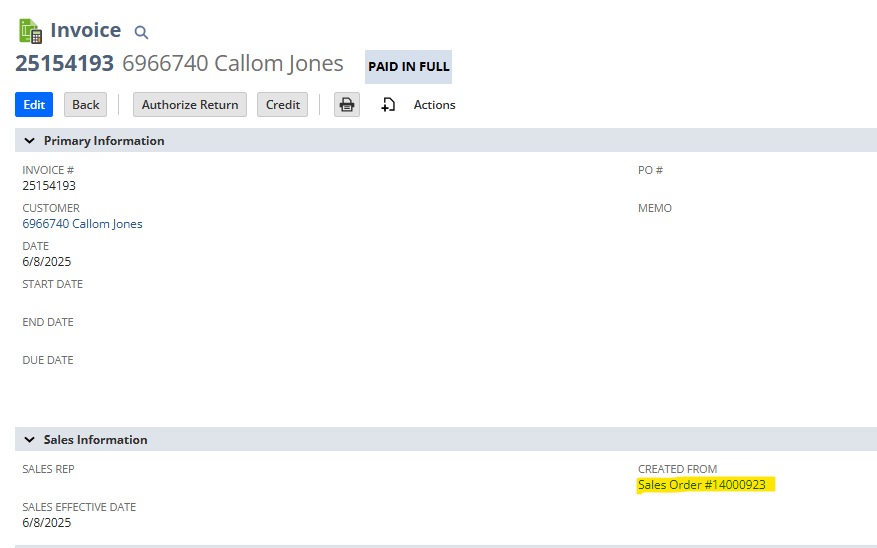
- From the Invoice Click on the Sales Order Number
- Scroll to the Dark Blue Bar and click on Billing
- Look for the GiveX Card Number
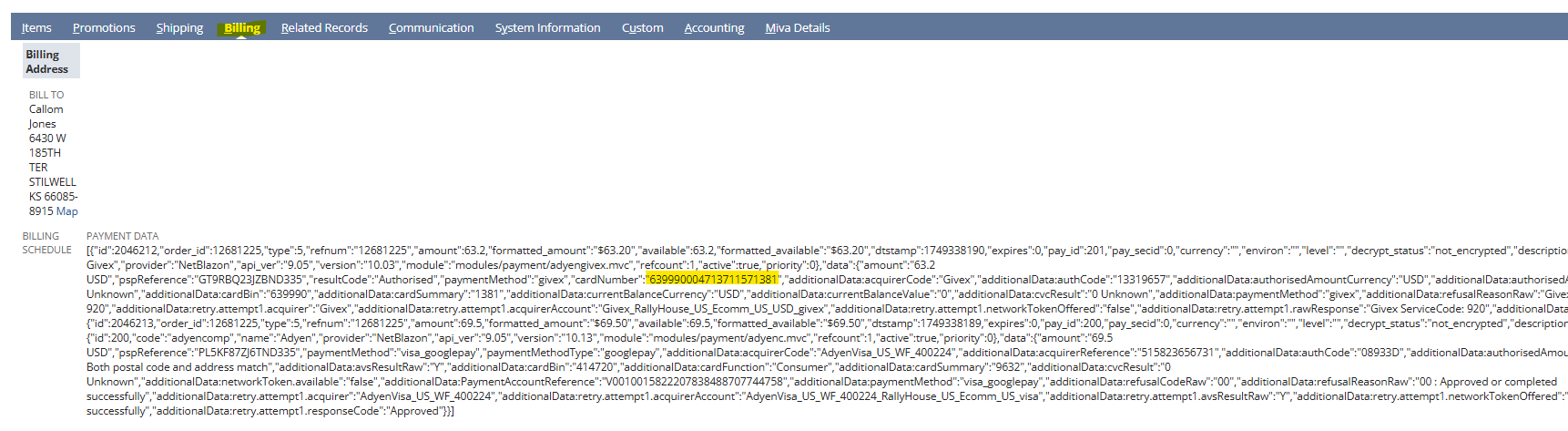
- Copy the GiveX Number
- Login to GiveX in a separate tab
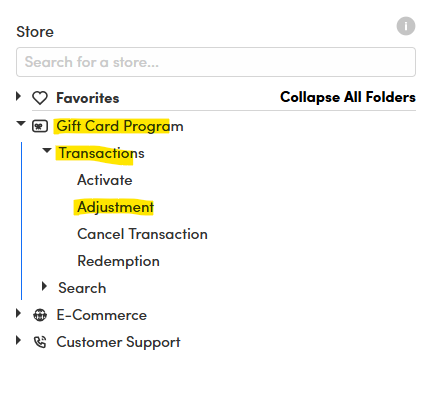
- Click on Gift card program then Transactions
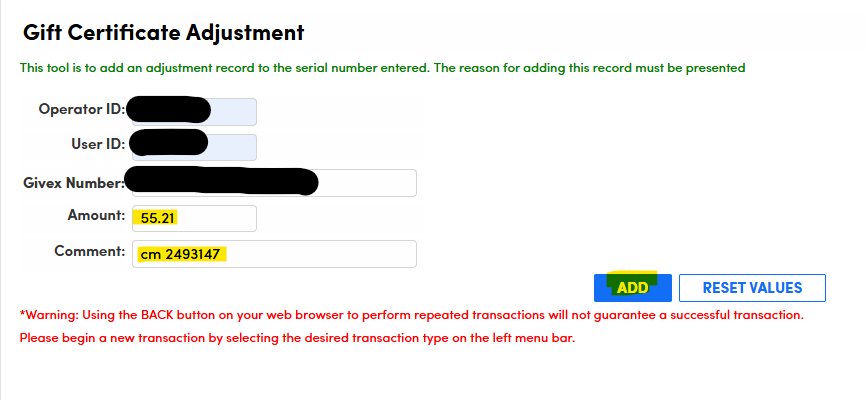
- Click on Adjustment
- Operator ID
- User ID
- GiveX Number
- Paste from the Sales Order
- Amount
- Comment
- Type in Credit Memo Number
- Click Add
- Go Back to the CS-Open Credit Memo Results
- Click to Create Refund

- In the Processing Comments paste the GiveX number
- Scroll to dark blue bar and select refund method
- POS-Gift Card
- Click Save