Skip to content
Online Orders Process Guide
- In NS Global search enter marketingmaterials@rallyhouse.com
- Open Customer Record in new tab
- Hover over the paper icon and select Sales Order
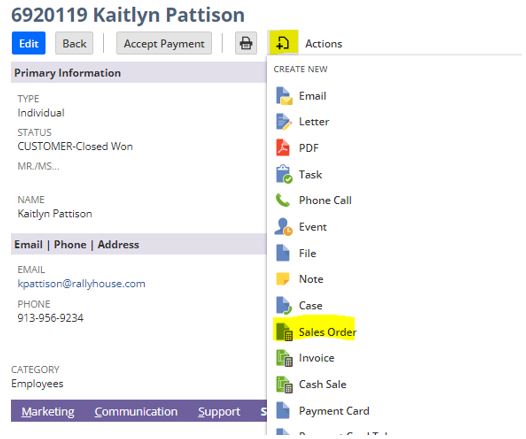
- Under Sales Order Issues, control click on Marketing Materials Order (Should highlight option selected in blue)
- Scroll down to “Shipping Information” and select your Shipping Method
- Make sure that your Shipping Carrier is selected as USPS/More
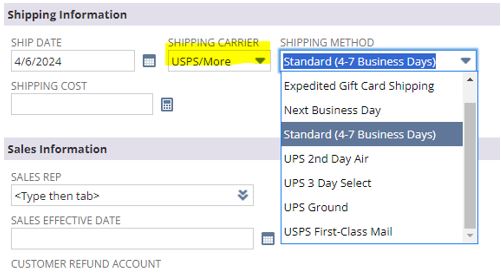
- Change Shipping Cost to $0
- Scroll down the order form to the items option
- Enter style number of the item customer is wishing to purchase and select correct size
- Update qty if customer wishes to purchase more than one of the item
- Select add
- Repeat these steps for all items customer wishes to purchase

- Once all items are added, change the Amount to $0
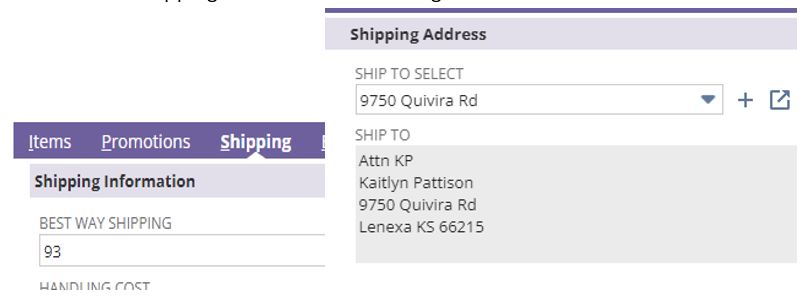
- Select the shipping tab
- Enter the Best Way Shipping
- Under Shipping Address select existing address for customer or create new
- Select Billing tab
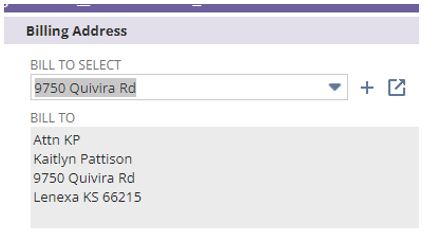
- Select existing Billing Address for customer or create new
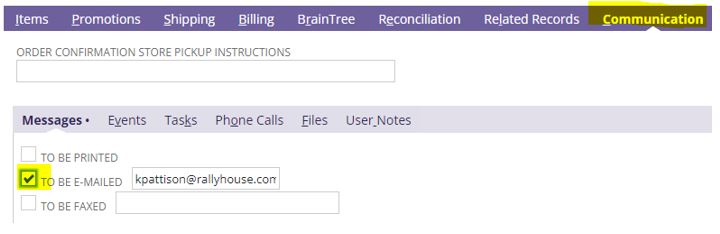
- Select Communication tab
- Select the To Be E-Mailed box
- Scroll to top of order form and confirm Summary is $0
- Save Order
- Wait a minute and refresh to make sure that LAF runs for the order
- This will “Bill” the order and create the fulfillments
Returns Process Guide
- Go to www.rallyhouse.com/returns
- Scroll to the bottom of the screen
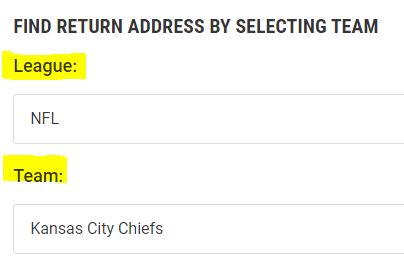
- Under Find Return Address, select the League and Team for the item(s) being returned
- Select the red return label button
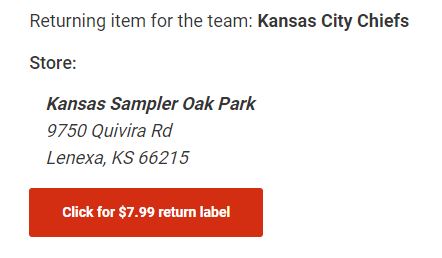
- This will take you to the USPS site to create a return label
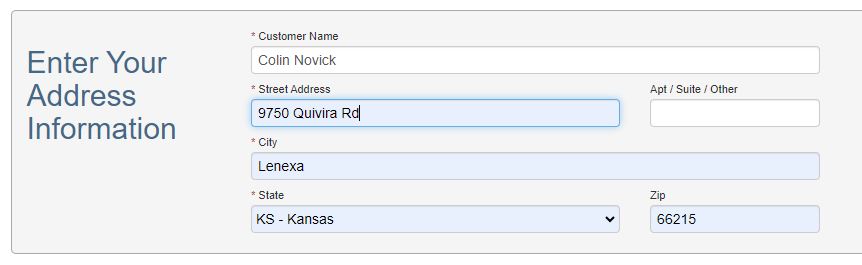
- Fill out the return address information
- This should be the address that the original package was shipped to
- Select Next
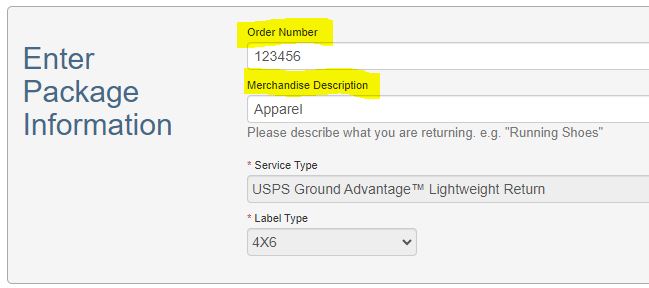
- Enter Package Information
- Merchandise Description should be type of product being shipped back
- IE: apparel, hat, pint, socks
- Select Next
- If you are connected to a printer select Print Label (PDF)
- If you are not connected to a printer select Email
- This will send a PDF copy of the label to keep for a later date
- Select Submit
- Print Label
- save tracking if you would like to keep track of return package
- Package item(s) back in original packaging and tape return label to package
- Place in outgoing mail